tutorial
Critical PHP RCE Vulnerabilities (CVE-2026-109618 & CVE-2026-109619): What To Do Right Now
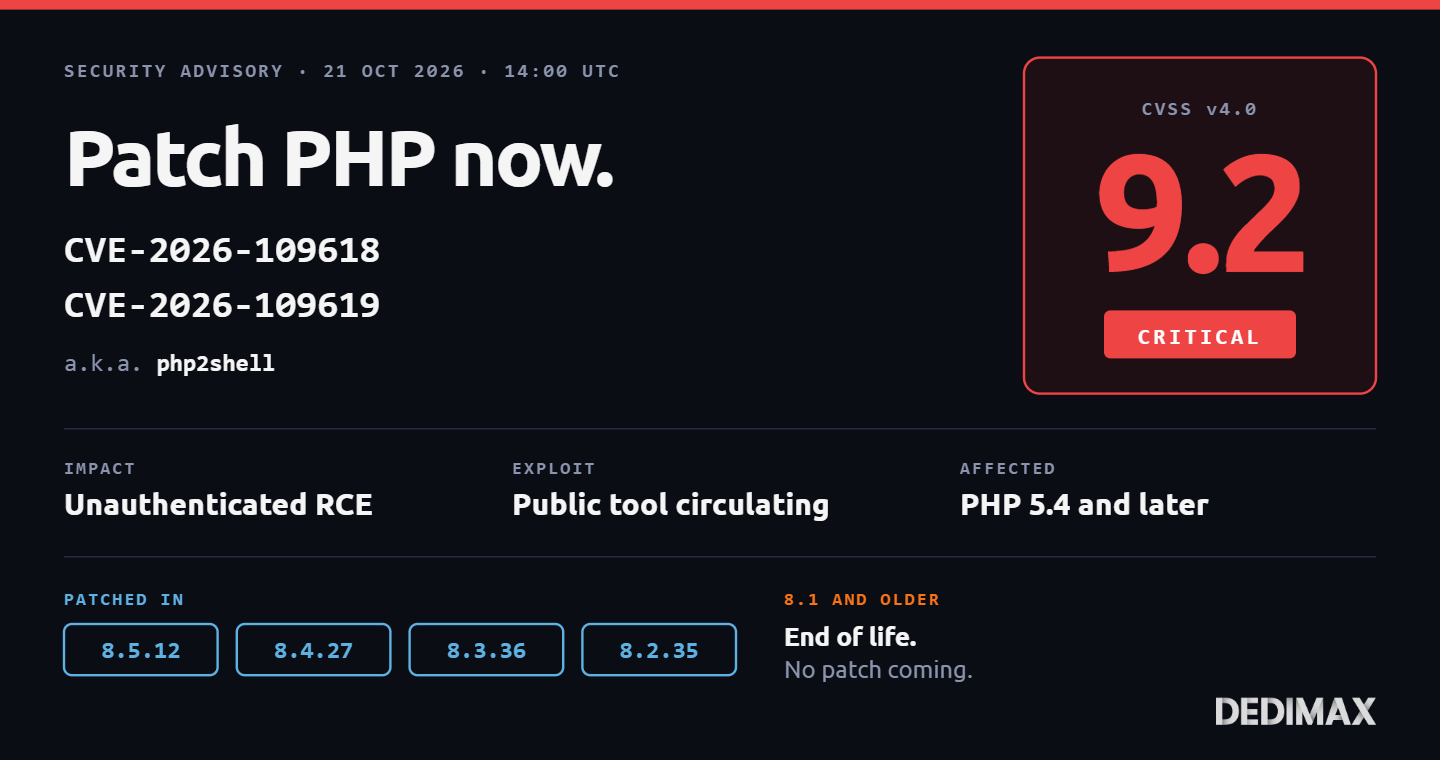
Two critical remote code execution vulnerabilities in PHP were patched today, October 21, 2026 at 14:00 UTC. T...

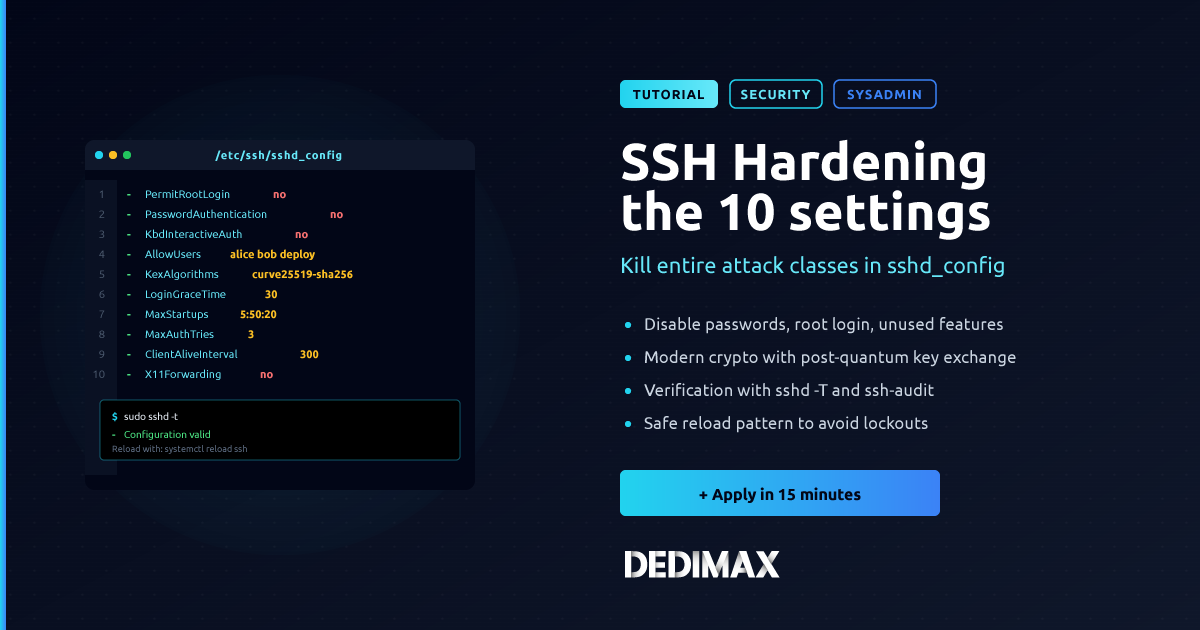
Every sysadmin has read the "change the SSH port to 2222" advice. It's the wrong lesson. Attackers scanning the internet don't care about port 22 versus 2222, they scan the whole range in under an hour. What actually stops attacks against your SSH server is a small set of configuration choices in sshd_config that eliminate entire attack classes, not a port change that only reduces log noise.
This guide walks through the 10 settings that meaningfully improve SSH server security on a Linux host. Each setting solves a specific problem, and the reasoning behind each choice matters more than copy-pasting the values. Skip the ones that don't apply to your setup, but understand why before you skip.
The scope is deliberately narrow: SSH server hardening through sshd_config. Not fail2ban, not SSH key management, not client-side hardening. Those are separate topics that deserve their own guides. What follows is what you should have in /etc/ssh/sshd_config on any production Linux server.
Two prerequisites, both non-negotiable.
Never edit sshd_config remotely without a working escape route. If you lock yourself out of a remote server, you're calling the datacenter or the cloud console. Before any SSH hardening work, either:
sshd_config before every changeThe pattern is: edit, test config syntax with sshd -t, reload the service, verify the second SSH session still works, then close and reopen it to confirm new connections still succeed.
Test config changes before applying them. After every edit:
sshd -tThis validates the syntax and reports errors without applying anything. Fix everything it reports before running systemctl reload ssh or systemctl restart ssh.
With those safeguards in place, here are the 10 settings that matter.
The single biggest security improvement you can make. Passwords are guessable, reusable, and stored on user machines in places you don't control. SSH keys aren't.
PasswordAuthentication no
KbdInteractiveAuthentication no
The second line matters more than most people realize. On modern Ubuntu and Debian, PasswordAuthentication no alone doesn't fully disable password login because PAM's keyboard-interactive method provides a fallback path. You need both directives set to no to actually kill password authentication.
Before applying this, verify every user who needs SSH access has a working public key in ~/.ssh/authorized_keys and has tested key-based login successfully. Locking out your own admin account is embarrassing.
Root should never log in over SSH. Ever. Not for convenience, not for scripts, not for backups. Log in as an unprivileged user, then sudo for privileged operations. This gives you an audit trail, limits blast radius on credential compromise, and forces the two-factor pattern of "know the user password + control the SSH key".
PermitRootLogin noIf you have scripts or automation that currently SSH as root, refactor them. Create a dedicated service account with the specific sudo rules it needs, and use that account instead. The friction of the refactor is worth the security benefit.
We covered the migration path in more detail in our earlier post on why you should stop logging into root via SSH.
By default, any user with a login shell and SSH access on the server can connect. On a machine with multiple accounts (service accounts, deployment users, monitoring), that surface is bigger than it needs to be. Restrict SSH to the explicit list of accounts that need it.
AllowUsers alice bob deployOr, if you prefer to manage access by group:
AllowGroups ssh-usersEveryone else on the system, even accounts that exist for other reasons, cannot open an SSH session. This is your primary control against a compromised service account being used to pivot.
If you use AllowUsers or AllowGroups, DenyUsers and DenyGroups become unnecessary. Whitelist beats blacklist for this kind of control.
SSH has accumulated years of legacy algorithms, and older ones have known weaknesses. Modern OpenSSH ships sensible defaults, but if your sshd_config was written for a distribution from 2018, it might still allow ciphers and key exchange algorithms that shouldn't be in production.
Restrict to modern, well-reviewed algorithms:
KexAlgorithms curve25519-sha256,curve25519-sha256@libssh.org,sntrup761x25519-sha512@openssh.com
Ciphers chacha20-poly1305@openssh.com,aes256-gcm@openssh.com,aes128-gcm@openssh.com
MACs hmac-sha2-512-etm@openssh.com,hmac-sha2-256-etm@openssh.com
HostKeyAlgorithms ssh-ed25519,rsa-sha2-512,rsa-sha2-256
The sntrup761x25519-sha512@openssh.com key exchange in the first line is the post-quantum-resistant KEX added in recent OpenSSH releases. Including it in your allowed list means quantum-vulnerable session recording (harvest-now-decrypt-later attacks) becomes ineffective against your traffic.
If you have clients on very old OpenSSH versions, verify they can still negotiate these algorithms before you apply. A modern OpenSSH client from 2022 or later will have no trouble. Ancient clients from Ubuntu 16.04 might.
The default LoginGraceTime is 120 seconds. That's how long the server holds a partially-authenticated connection open, waiting for the client to complete the login. Attackers can abuse this to hold many open connections at once, exhausting your MaxStartups and locking out legitimate users.
Reduce it:
LoginGraceTime 30Thirty seconds is plenty for any real human or automated client to complete authentication. If a client can't log in within 30 seconds, the connection is either broken or an attack.
MaxStartups controls how many concurrent connections can be in the "not yet authenticated" state. The default (10:30:100) means: start refusing at 10 concurrent unauth connections, with 30% probability, up to 100 max.
For a server that only expects a handful of legitimate SSH connections at any time, tighten this:
MaxStartups 5:50:20This starts throttling at 5 concurrent unauthenticated attempts, drops to 50% acceptance probability up to 20 max. Legitimate users are unaffected. Attackers doing distributed connection floods hit the throttle immediately.
MaxAuthTries limits how many wrong authentication attempts a single connection can make before the server disconnects. The default is 6. When you've disabled password authentication (step 1), this mainly protects against clients trying every key in their agent, but reducing it also cuts off brute-force key attempts.
MaxAuthTries 3Three tries is enough for the common "wrong key first, correct key second" case, without giving attackers a large budget per connection.
Long-lived idle SSH sessions are a liability. A developer opens an SSH session before lunch, forgets about it, and the laptop gets stolen. That session might still be alive and usable.
Set an idle timeout:
ClientAliveInterval 300
ClientAliveCountMax 2
The server sends a keepalive every 300 seconds. If two keepalives go unanswered (client dead or laptop closed), the session is terminated. Total idle timeout: 10 minutes. Adjust up or down based on your team's workflow, but don't leave it disabled.
Note: some tutorials confusingly call this the "server side keepalive". It's the same thing.
SSH supports a lot of features you probably don't need on a hardened server: X11 forwarding, agent forwarding, TCP forwarding, tunneled clear text passwords. Every enabled feature is a potential attack path or misuse channel.
Disable everything you don't explicitly use:
X11Forwarding no
AllowAgentForwarding no
AllowTcpForwarding no
PermitTunnel no
GatewayPorts no
PermitUserEnvironment no
If you use agent forwarding for git operations or TCP forwarding for tunneled services, keep those enabled selectively. Just be honest about what you actually use, and disable the rest.
PermitUserEnvironment no is worth calling out. When enabled, users can set environment variables via their ~/.ssh/environment file, which is a classic privilege-escalation surface if a user account gets compromised. Leave it disabled unless you have a very specific reason.
Modern OpenSSH doesn't support Protocol 1, so Protocol 2 is implicit and usually not required. But two related settings still matter on many distributions:
Protocol 2
IgnoreRhosts yes
HostbasedAuthentication no
PermitEmptyPasswords no
IgnoreRhosts yes disables the old rhosts trust mechanism. HostbasedAuthentication no disables the newer but similarly problematic host-based auth. PermitEmptyPasswords no should always be set, though the default has been safe for years.
These four together kill any lingering legacy authentication paths. Even if a bug or misconfiguration somewhere enables them, the explicit no in your config wins.
Once you've edited sshd_config, validate:
sshd -tIf it reports no errors, reload the service:
systemctl reload sshreload re-reads the config for new connections without dropping your current session. That's what makes it safer than restart. Existing SSH sessions continue with their old settings until they close.
Now the critical step: open a new SSH session from a different terminal:
ssh your-user@your-serverIf the new session succeeds, your changes are working. If it fails, use your still-open first session to revert the config and reload again.
Only after you've verified a new session works, close your first session. This is the sequence that prevents lockouts.
To confirm the server is enforcing what you configured, run:
sshd -T | grep -E "passwordauth|permitroot|allowusers|kexalgorithms|ciphers|macs|logingrace|maxstartups|maxauthtries|clientalive|x11forward|allowagent|allowtcp"This dumps the effective configuration (including any defaults that apply when a directive isn't set explicitly). Cross-check each line against what you intended.
For external verification, use ssh-audit, an open-source tool that connects to your SSH server and reports its supported algorithms, protocol versions, and known weaknesses. Run it from a machine outside your server:
pip install ssh-audit
ssh-audit your-server-ip
The report will grade each algorithm and flag anything weak or deprecated. If you followed the settings above, you should see mostly greens, with warnings only on legacy algorithms if any are still enabled server-side.
This guide intentionally stops at sshd_config. Real SSH security is a broader topic that includes:
Each of those layers meaningfully reduces risk, but they're additive to the sshd_config hardening in this guide, not replacements for it. Get the server config right first, then build the additional layers on top.
Every setting above shares a common structure: eliminate a capability you don't need, and any bug or misconfiguration that would have exposed it can no longer hurt you.
You don't use root SSH login? Disable it, and the "someone found the root password" attack no longer exists. You don't use password authentication? Disable it, and brute-force password guessing is impossible against your server. You don't use X11 forwarding? Disable it, and any future CVE in X11 forwarding code doesn't affect you.
This is why hardening beats monitoring for baseline SSH security. Monitoring tells you when something bad is happening. Hardening ensures the bad thing can't happen in the first place.
Set these 10 directives on any Linux server you administer, verify with ssh-audit, and you've eliminated the vast majority of SSH attack paths for the cost of 15 minutes and a config reload. On your VPS or dedicated server, this should be part of the standard post-provisioning checklist, applied before the machine sees any real workload.
Deploy your own VPS
300+ apps in one click, full root access, ready in minutes.
From 9,99€/mes
Two critical remote code execution vulnerabilities in PHP were patched today, October 21, 2026 at 14:00 UTC. T...
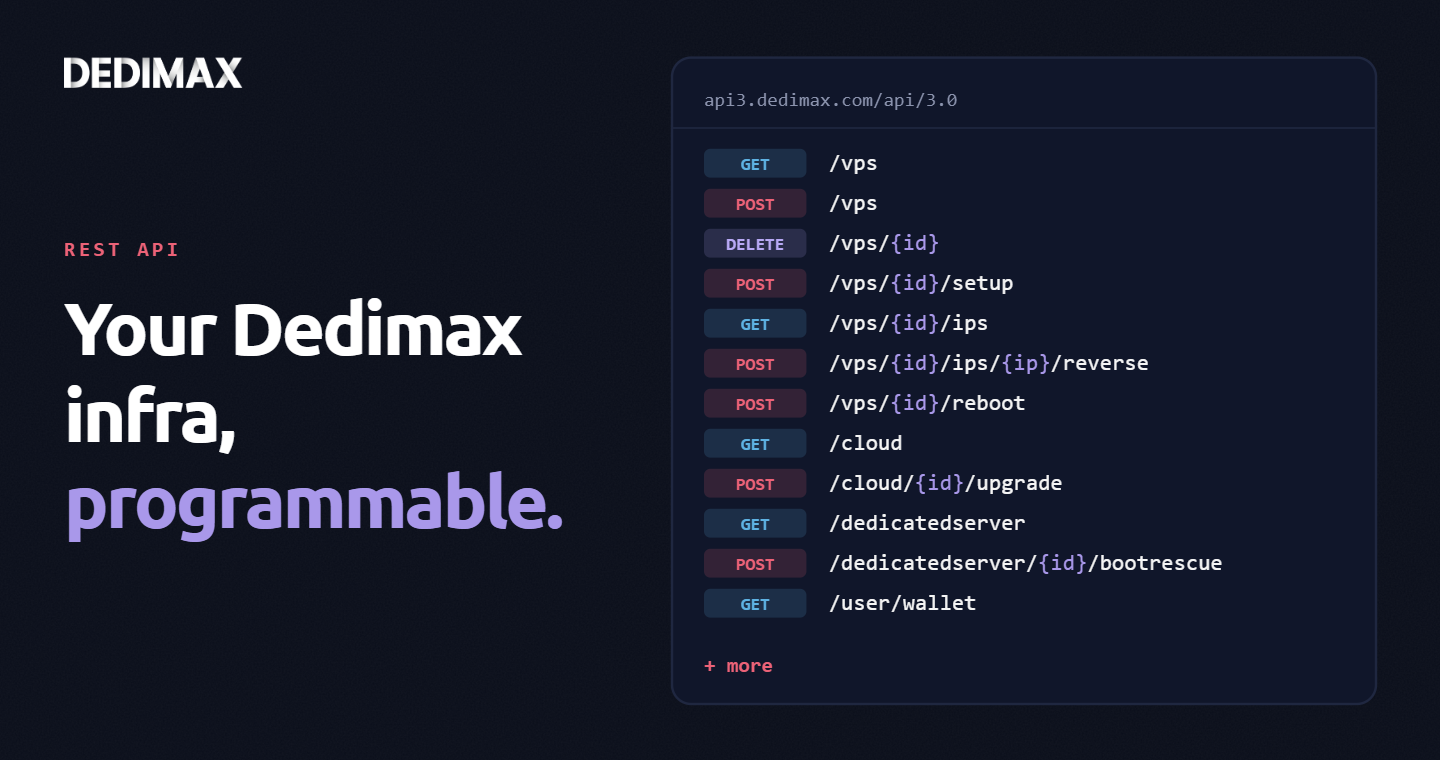
Clicking through a panel to provision a VPS, trigger a reboot, or change a reverse DNS record is fine when you...
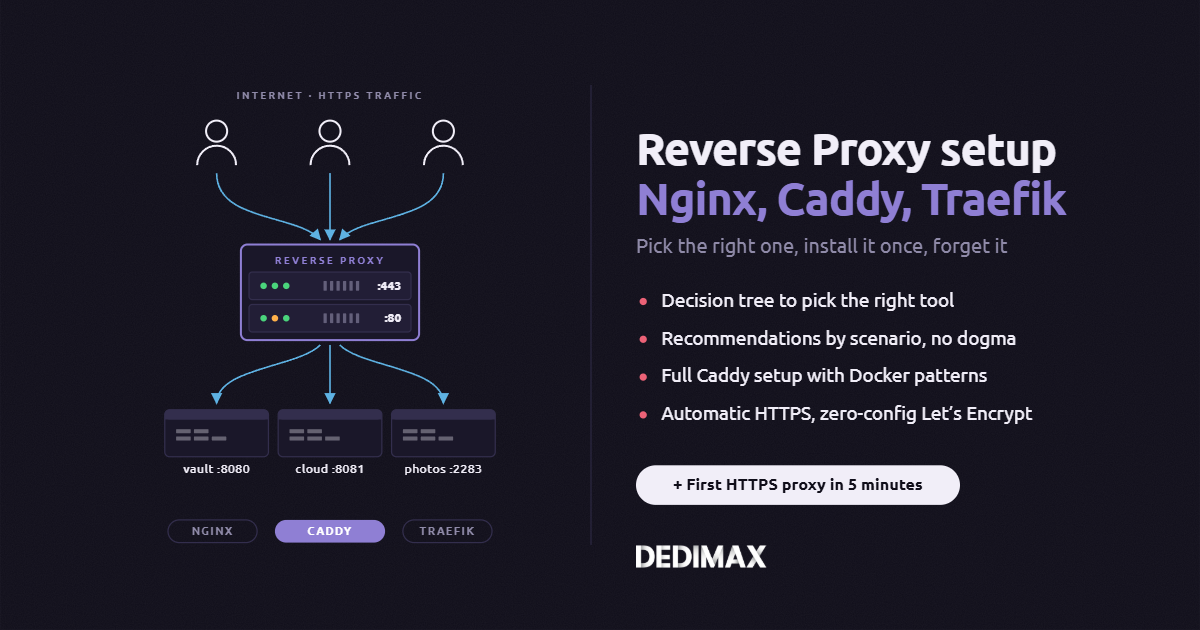
Almost every guide on this blog eventually says "put a reverse proxy in front of it." Vaultwarden needs one. S...
Toma el control de tu servidor dedicado (configuraciones, datos...) sin límites en el uso de aplicaciones.
Que estas esperando ?
Te esperamos en nuestro blog. Guías y tutoriales publicados regularmente (sysadmin, gaming, devops...) !
Permítame verificar