
If your team manages projects, sprints, or product roadmaps, you've probably used Jira, Linear, Asana, or one of the other hosted tools. They work, but they come with the usual baggage: per-seat pricing that compounds as you grow, your data sitting on a vendor's servers, and the slow drift of features and prices that you didn't ask for.
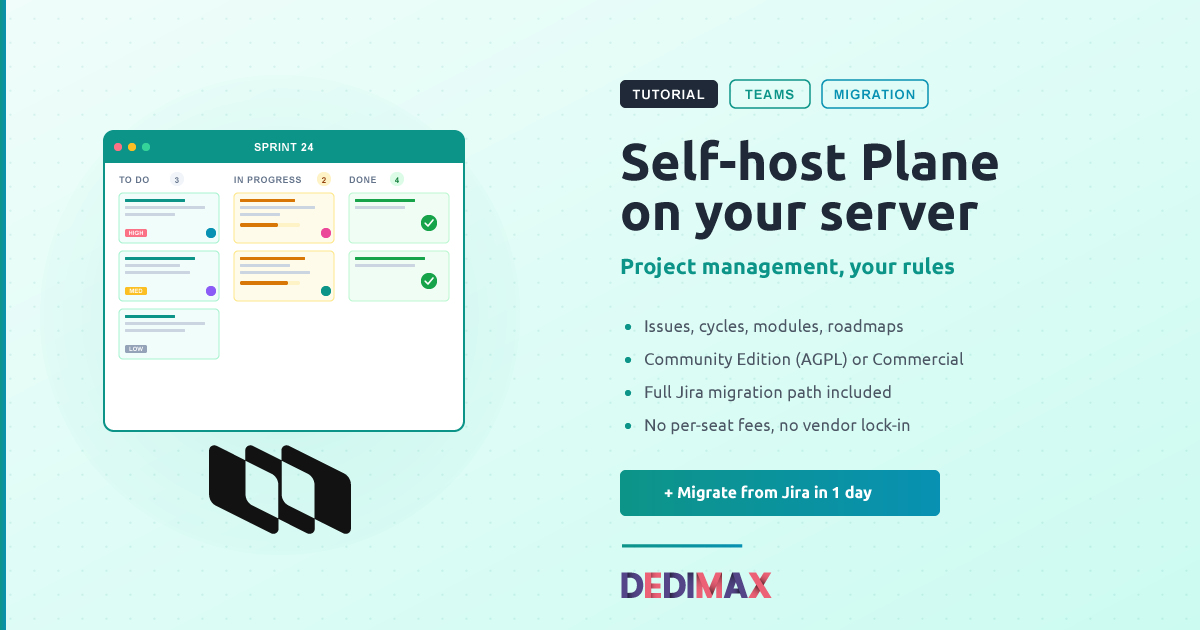
Plane is the open-source alternative that takes that decision back. Issues, cycles, modules, roadmaps, knowledge base, full API. Everything you'd expect from a modern project tool, running on a server you control.
This guide covers the full deployment: what you need, how to install Plane on a server, which edition to pick, and how to migrate existing Jira projects into it.
Plane is an AGPL-3.0 licensed project management platform built around modern team workflows. The feature set covers:
The repo sits at makeplane/plane on GitHub. Development is active with regular releases, and the project has grown significantly in 2026 as teams look for alternatives to hosted project management tools.
Plane ships in two flavors when you self-host. They run on the same code, but the experience and the licensing differ.
Community Edition is fully AGPL-3.0. You install it with Docker Compose, you control everything, and you don't pay anything. The trade-off is that some advanced features (intake forms, time tracking, advanced workflow automation, AI features) require the commercial edition.
Commercial Edition uses Plane's Prime CLI for installation and ships with all features enabled. There's a free tier on this edition, so you can run a small team on it without paying. When you need more users or want to unlock paid features, you buy a license and paste it into your instance. No code changes, no migration.
Practical guidance: if you're a small dev team or a personal project, start with Community. If you're a larger team that wants the easier installer and the option to upgrade to paid features later, start with Commercial on the free tier.
This guide covers both paths.
Plane is heavier than most self-hosted tools because it runs a full microservices stack. Plan for these resources:
Some guides claim Plane runs on 4 GB. It technically does, but it'll be slow under any real load. Containers will hit OOM, the migrator will fail, and your users will complain about latency. Don't try to save 5€/month here.
A VPS at 9.99€/month with 8 GB RAM works for teams up to about 20 users. For larger teams or heavier usage, move to a dedicated server with 16+ GB RAM and NVMe storage.
SSH in as root or a sudo user:
ssh root@your-server-ipUpdate everything:
apt update && apt upgrade -yInstall Docker if it's not already there. The fast way:
curl -fsSL https://get.docker.com | sh
systemctl enable docker
For a more detailed walkthrough, see our Docker install guide.
Open the required ports in your firewall:
ufw allow 22/tcp
ufw allow 80/tcp
ufw allow 443/tcp
ufw enable
If you're new to UFW, our firewall guide covers the basics.
This is the fully open-source path. Create a working directory and grab the official installer:
mkdir -p /opt/plane && cd /opt/plane
curl -fsSL https://raw.githubusercontent.com/makeplane/plane/master/deploy/selfhost/install.sh -o setup.sh
chmod +x setup.sh
Run the installer:
./setup.shYou'll get a menu:
1) Install
2) Start
3) Stop
4) Restart
5) Upgrade
6) View Logs
7) Backup Data
8) Exit
Pick 1) Install. The script downloads docker-compose.yaml and plane.env into a new plane-app directory.
Edit the environment file:
nano plane-app/plane.envThe minimum required changes:
DOMAIN_NAME=plane.yourdomain.com
WEB_URL=https://plane.yourdomain.com
APP_PROTOCOL=https
APP_DOMAIN=plane.yourdomain.com
If you're going to production, also override the default database password (POSTGRES_PASSWORD), the Redis credentials, and the storage admin credentials (AWS_ACCESS_KEY_ID, AWS_SECRET_ACCESS_KEY for the bundled MinIO).
Once your .env is set, run the installer again and pick 2) Start. The script pulls all images, runs migrations, and starts the stack. Allow 3 to 5 minutes for the first boot.
When you see Plane has successfully installed, point your domain's DNS A record at your server and skip to Step 3.
This path uses Plane's Prime CLI, which is more streamlined. Install Prime CLI:
curl -fsSL https://prime.plane.so/install.sh | shThen run:
prime installThe CLI walks you through two modes:
Pick Express for a fresh install. The CLI asks for your domain name, sets up SSL paths, and starts the stack.
When it's done, the CLI prints your instance URL and the path to your admin setup. You're running on the free tier until you add a license key.
Both editions need HTTPS for anything beyond local testing.
Add a DNS A record:
A plane.yourdomain.com YOUR_SERVER_IPWait 1 to 5 minutes for DNS propagation. The simplest HTTPS setup is to put Nginx in front as a reverse proxy with Let's Encrypt:
apt install nginx certbot python3-certbot-nginx -yCreate /etc/nginx/sites-available/plane:
server {
    listen 80;
    server_name plane.yourdomain.com;

    client_max_body_size 100M;

    location / {
        proxy_pass http://127.0.0.1:80;
        proxy_set_header Host $host;
        proxy_set_header X-Real-IP $remote_addr;
        proxy_set_header X-Forwarded-For $proxy_add_x_forwarded_for;
        proxy_set_header X-Forwarded-Proto $scheme;

        proxy_http_version 1.1;
        proxy_set_header Upgrade $http_upgrade;
        proxy_set_header Connection "upgrade";

        proxy_read_timeout 86400;
    }
}
Enable the site and get SSL:
ln -s /etc/nginx/sites-available/plane /etc/nginx/sites-enabled/
nginx -t
systemctl reload nginx
certbot --nginx -d plane.yourdomain.com
The Upgrade and Connection headers are mandatory. Plane's real-time collaboration uses WebSockets, and without them your team will see stale data and broken sync.
If you have your Plane stack listening on port 80 already, change Plane's port in its .env file (something like 8080) and adjust proxy_pass accordingly.
Open https://plane.yourdomain.com in your browser. You'll land on the "Let's secure your instance" screen.
Enter an email and password. This first account becomes your Instance Admin with access to /god-mode, the admin panel where you configure:
Configure SMTP early. Without it, you can't invite team members. Plane works with any SMTP server (Postmark, Mailgun, SES, or your own).
Once that's done, create your first workspace and invite your team.
If your team is moving off Jira, this is the part you came for. Plane provides an official importer that handles the bulk of the work.
Before you start, decide on your migration strategy. The most common pattern is:
From Jira, you have two main export paths.
CSV export (works for any Jira plan):
project = "YOUR_PROJECT"This gives you a flat file with all issues. You'll lose nested structures (subtasks become flat references), but you keep titles, descriptions, statuses, priorities, assignees, and comments.
JSON export via Jira REST API (more complete, requires admin access):
curl -u user@email.com:API_TOKEN \
  -X GET "https://yourcompany.atlassian.net/rest/api/3/search?jql=project=YOUR_PROJECT&expand=names,schema,renderedFields&maxResults=100" \
  > jira-export.json
Repeat with pagination (startAt parameter) until you've covered all issues. This preserves more structure: subtasks, links between issues, custom fields, full comment threads.
In Plane, go to your workspace, then Settings → Imports. Plane ships with a Jira importer that accepts the JSON export directly.
Map your fields:
| Jira field | Plane equivalent |
|---|---|
| Summary | Title |
| Description | Description |
| Status | State |
| Priority | Priority |
| Assignee | Assignee |
| Reporter | Created by |
| Labels | Labels |
| Components | Modules |
| Sprints | Cycles |
| Epics | Modules (or parent issues) |
Plane will create matching states, priorities, and labels in your workspace as it imports. Custom fields don't have a 1:1 mapping; you'll need to decide whether to drop them, store them in the description, or use Plane's custom properties feature.
The importer reports progress and surfaces errors row by row. Common issues:
Be honest with your team about what you won't keep:
Run Plane and Jira in parallel for a week. Have your team create new issues in Plane while leaving Jira as a read-only archive. After a week, freeze Jira entirely.
Document the cutover date in a pinned message. There will always be someone who creates an issue in Jira three days after the switch because they forgot. That's normal.
Updates. For Community Edition, run ./setup.sh and pick 5) Upgrade. For Commercial Edition, run prime upgrade. Both handle stopping the stack, pulling new images, running migrations, and restarting.
Backups. Plane stores data in three places: PostgreSQL (everything structured), MinIO or your S3 backend (uploaded files), and Redis/Valkey (cache, doesn't need backup).
Dump the database daily:
docker compose exec plane-db pg_dump -U plane plane | gzip > /backups/plane-db-$(date +%Y%m%d).sql.gzBack up the MinIO volume:
docker run --rm \
  -v plane-app_uploads:/data \
  -v /backups:/backup \
  alpine tar czf /backup/plane-uploads-$(date +%Y%m%d).tar.gz /data
Follow the 3-2-1 backup strategy: three copies, two different storage media, one offsite.
Monitoring. Set up uptime checks with Uptime Kuma on your Plane URL and the database port. The most common failure mode is the migrator container failing during an upgrade, which silently breaks new features until you notice.
Migrator container keeps restarting. PostgreSQL isn't fully ready when the migrator starts. Check docker compose logs plane-db first, fix any DB errors, then restart the migrator: docker compose up -d migrator.
WebSocket errors in the browser console. Your reverse proxy isn't forwarding Upgrade and Connection headers. Check your Nginx config matches the example above.
OOM kills on a 4 GB server. Yep. Upgrade to 8 GB. Plane is not optimized for tiny servers.
Slow page loads. Check disk I/O on the database container with docker stats. PostgreSQL on slow storage is painful. NVMe makes a real difference here.
Email invitations not arriving. SMTP isn't configured or your provider is rejecting messages. Test from the god-mode panel. If you're sending through Gmail, you'll need an App Password (not your account password).
Per-seat pricing on hosted project management tools adds up fast. A 15-person team on a paid hosted plan typically pays between 100€ and 250€ per month, depending on the tier. A 50-person team on enterprise tiers is often above 500€ monthly.
Plane self-hosted on a 9.99€/month server handles teams up to about 20 users comfortably. Larger teams move to a more powerful server (typically 25 to 50€/month) and still come out well ahead.
The trade-off is that you're running the infrastructure. Updates, backups, monitoring. For a team with any technical depth, that's a few hours per month of work. For teams without that capacity, the hosted tools exist for a reason.
If you do go self-hosted, deploy Plane on a Dedimax VPS or dedicated server, and you'll have your team off Jira within a couple of weeks.
Toma el control de tu servidor dedicado (configuraciones, datos...) sin límites en el uso de aplicaciones.
Que estas esperando ?
Te esperamos en nuestro blog. Guías y tutoriales publicados regularmente (sysadmin, gaming, devops...) !
Permítame verificar