
So you just got a fresh VPS. First thing you do after logging in? Set up a firewall. Seriously. Your server is on the open internet, and bots are already scanning it. I checked the auth logs on a brand new VPS once. Within 20 minutes, there were over 300 failed SSH login attempts from IPs I'd never seen. That's just how the internet works.
UFW (Uncomplicated Firewall) is the easiest way to lock things down on Ubuntu. It's a frontend for iptables that doesn't require you to memorize cryptic syntax. Here's how to get it running properly.
On most Ubuntu VPS images, UFW comes pre-installed but disabled. Check with:
sudo ufw statusIf it says "inactive", good. It's there, just not turned on yet. If it's not installed at all:
sudo apt update && sudo apt install ufw -yThis is the one thing you absolutely cannot mess up. If you enable UFW without allowing SSH, you lock yourself out of your own server. I've seen people do this. It's not fun.
sudo ufw allow 22/tcpIf you changed your SSH port to something else (which is actually a decent idea to reduce noise in your logs), use that port instead:
sudo ufw allow 2222/tcpOnly open what you use. Every open port is a potential attack surface. Here are the common ones:
# Web server
sudo ufw allow 80/tcp
sudo ufw allow 443/tcp

# Minecraft server
sudo ufw allow 25565/tcp

# OpenClaw dashboard
sudo ufw allow 18789/tcp

# MySQL (only if you need remote access, usually you don't)
# sudo ufw allow 3306/tcp
Notice I left MySQL commented out. Unless you have a very specific reason to expose your database to the internet, don't. Applications on the same server connect through localhost anyway.
Once your rules are set:
sudo ufw enableIt'll warn you that existing SSH connections might be disrupted. If you allowed SSH in the step above, you're fine. Type y and hit enter.
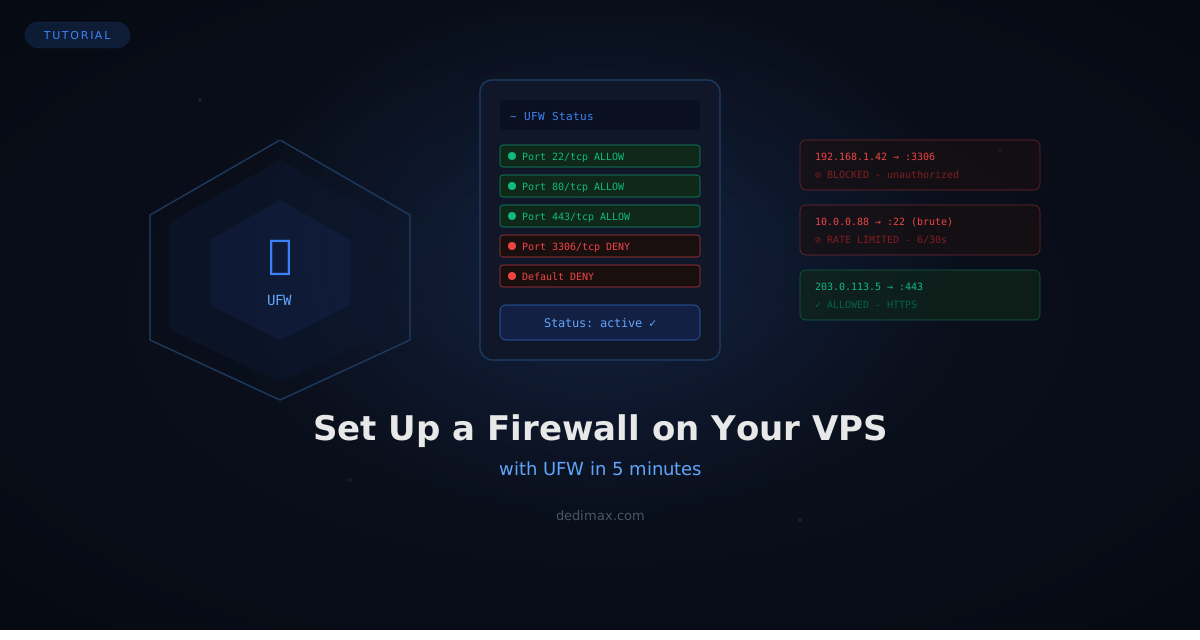
sudo ufw status verboseYou should see something like this:
Status: active
Logging: on (low)
Default: deny (incoming), allow (outgoing), disabled (routed)

To                         Action      From
--                         ------      ----
22/tcp                     ALLOW IN    Anywhere
80/tcp                     ALLOW IN    Anywhere
443/tcp                    ALLOW IN    Anywhere
The key line is Default: deny (incoming). That means everything is blocked unless you explicitly allowed it. Exactly what you want.
UFW survives reboots. Once enabled, it stays enabled. Your rules persist. You don't need to re-run anything after a server restart.
Rate limiting SSH is worth it. Instead of just allowing SSH, you can rate-limit it:
sudo ufw delete allow 22/tcp
sudo ufw limit 22/tcp
This blocks an IP after 6 connection attempts within 30 seconds. It won't stop a determined attacker, but it kills 99% of the brute-force noise.
Need to remove a rule? Easy:
sudo ufw delete allow 80/tcpOr list rules by number and delete by number:
sudo ufw status numbered
sudo ufw delete 3Five minutes, and your VPS is significantly more secure than the default. UFW isn't the only security measure you should take. You should also disable root password login, use SSH keys, and keep your packages updated. But UFW is the single most impactful first step.
If you're setting up a VPS for the first time, Dedimax offers plans starting at 9.99€/month with DDoS protection included. The firewall handles application-level filtering, the DDoS protection handles the volumetric stuff. Together, they cover your bases.
Toma el control de tu servidor dedicado (configuraciones, datos...) sin límites en el uso de aplicaciones.
Que estas esperando ?
Te esperamos en nuestro blog. Guías y tutoriales publicados regularmente (sysadmin, gaming, devops...) !
Permítame verificar