
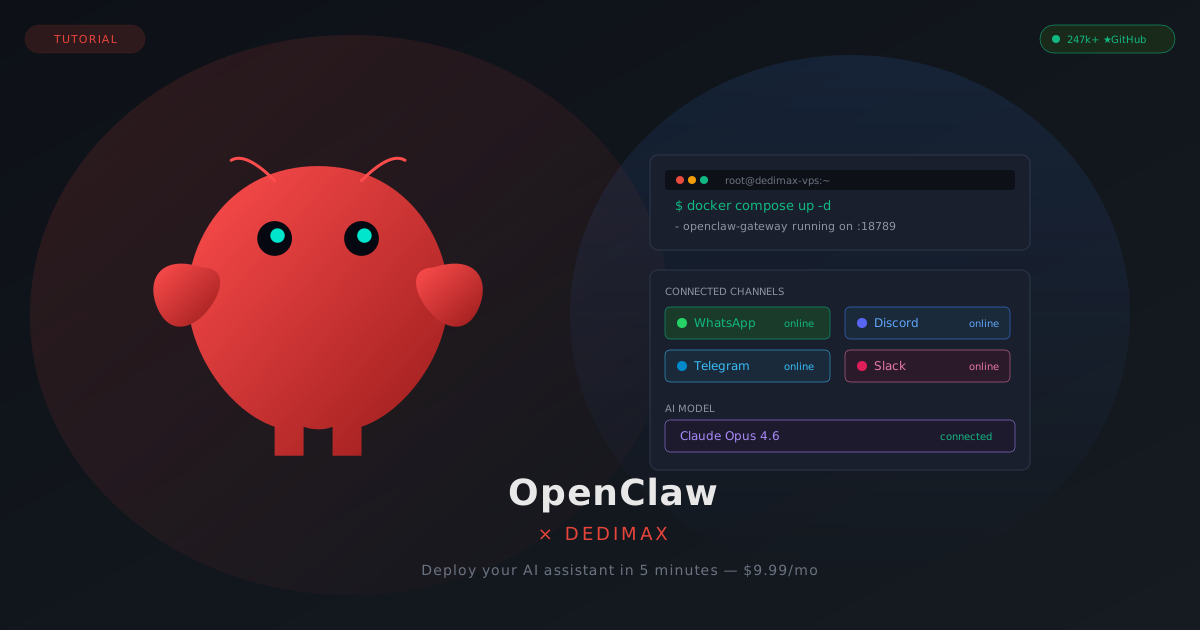
OpenClaw is one of the fastest-growing open source projects of 2026. It's a self-hosted AI assistant that connects your favorite messaging apps (WhatsApp, Telegram, Discord, Slack, and more) to powerful AI models like Claude and GPT-4. Instead of paying for yet another SaaS subscription, you run it on your own server, keep your data private, and only pay for the API calls you actually make.
In this guide, we'll show you how to deploy OpenClaw on a Dedimax VPS using Docker in under 5 minutes.
You can run OpenClaw on your laptop, but the moment you close it, your assistant goes offline. A VPS keeps it running 24/7 without depending on your personal machine.
Beyond uptime, a VPS gives you a stable network connection with a dedicated IP, which matters for WebSocket-based messaging integrations like WhatsApp and Telegram. It also isolates the agent from your personal files and network, adding a layer of security since OpenClaw can access the filesystem and execute commands.
And the cost? A capable VPS for OpenClaw starts at 9.99€/month. You get multi-channel support, full customization, and complete data ownership.
OpenClaw is lightweight. Here are the minimum requirements:
Head to dedimax.com and pick a VPS. For OpenClaw, our 9.99€/month plan with 4 GB RAM and 2 vCPUs is the sweet spot.
Why Dedimax for OpenClaw specifically?
Unlimited bandwidth. OpenClaw maintains persistent WebSocket connections to multiple messaging platforms simultaneously. These connections transfer data continuously. Many hosting providers cap bandwidth between 1 and 8 TB/month. If you're running an active assistant handling dozens of messages daily across multiple channels, you could hit those limits. With Dedimax, bandwidth is unlimited.
No commitment. Want to try OpenClaw for a month and see if it fits your workflow? Pay for one month, no strings attached. If it's not for you, cancel anytime. No 12 or 24-month contract required.
120+ server locations. Deploy your assistant close to your users for lower latency. Running a team assistant for your European office? Pick our French or German datacenter. Serving customers in Asia? We've got locations there too.
Once your VPS is ordered, you'll receive your SSH credentials within minutes. Choose Ubuntu 22.04 or 24.04 as your operating system.
SSH into your VPS:
ssh root@YOUR_VPS_IPInstall Docker using the official convenience script:
curl -fsSL https://get.docker.com | sh
systemctl enable docker
docker --version
docker compose version
Both commands should return version numbers. Docker is ready.
For a more detailed walkthrough, see our Docker install guide.
Clone the OpenClaw repository and run the Docker setup script:
git clone https://github.com/openclaw/openclaw.git
cd openclaw
./docker-setup.sh
The setup script builds the Docker image and launches an interactive onboarding wizard. It will ask you several questions:
Gateway mode. Choose "Local". This means the gateway runs on your VPS.
AI provider. Select your preferred model provider. Anthropic (Claude) is the recommended default. You'll need to paste your API key. Get one from console.anthropic.com if you don't have one yet.
Messaging channels. Connect the platforms you want to use. WhatsApp, Telegram, Discord, and Slack are the most popular. Each channel has its own pairing process. The wizard will guide you through it.
Gateway token. The setup generates a secure token for accessing the web dashboard. Save this token somewhere safe.
Once the wizard completes, OpenClaw starts automatically. That's it. Your AI assistant is live.
Check that the containers are running:
docker compose psYou should see the gateway container with status "Up".
Access the web dashboard at http://YOUR_VPS_IP:18789?token=YOUR_GATEWAY_TOKEN to manage your assistant, view conversations, and configure settings.
To pair a Telegram bot (for example), run:
docker compose run --rm openclaw-cli pairing approve telegram YOUR_CODESend a message to your bot on Telegram. OpenClaw responds using your configured AI model.
Before sharing your assistant with others, lock down the basics.
Configure the firewall to only allow SSH and the OpenClaw ports:
ufw allow 22/tcp
ufw allow 18789/tcp
ufw enable
For a complete walkthrough of UFW, see our firewall guide.
For production use, set up a reverse proxy with Nginx and a free SSL certificate from Let's Encrypt. This gives you HTTPS access and protects the gateway token in transit:
apt install nginx certbot python3-certbot-nginx -yConfigure Nginx to proxy traffic to OpenClaw on port 18789, then run certbot --nginx to get your SSL certificate. The official OpenClaw documentation has detailed instructions for this step.
Also consider restricting the gateway to loopback mode and accessing it only through SSH tunnels or Tailscale for maximum security. This prevents the dashboard from being exposed to the public internet.
OpenClaw releases frequently. To update your deployment:
cd openclaw
git pull
docker compose pull
docker compose up -d
docker image prune -f
Your conversations, settings, and connected channels are stored in Docker volumes and persist across updates.
ChatGPT is great, but it's a walled garden. OpenClaw gives you something fundamentally different.
With ChatGPT, your conversations live on OpenAI's servers. With OpenClaw on your VPS, everything stays on your machine. No one else can read your messages, your files, or your assistant's memory.
ChatGPT works in a browser tab. OpenClaw works in the apps you already use every day: WhatsApp, Telegram, Discord, Slack, and more. Send a message from your phone and get an AI response in the same chat thread.
ChatGPT Plus charges a fixed monthly subscription for a fixed set of features. With OpenClaw, you pay for the VPS (9.99€/month on Dedimax) plus only the API calls you actually make. For moderate usage, this is significantly cheaper.
And the killer feature: OpenClaw can execute tasks, not just chat. It can manage files, run shell commands, browse the web, and trigger automations. It's not an assistant you talk to. It's an assistant that works for you.
In under 10 minutes, you can have your own AI assistant running 24/7, connected to all your messaging platforms, with full privacy and control, for less than 10€/month.
Head to dedimax.com to get your VPS and start deploying OpenClaw today.
Toma el control de tu servidor dedicado (configuraciones, datos...) sin límites en el uso de aplicaciones.
Que estas esperando ?
Te esperamos en nuestro blog. Guías y tutoriales publicados regularmente (sysadmin, gaming, devops...) !
Permítame verificar