Black October Was Accelerated by AI. Here's What Comes Next for CVE Monitoring.
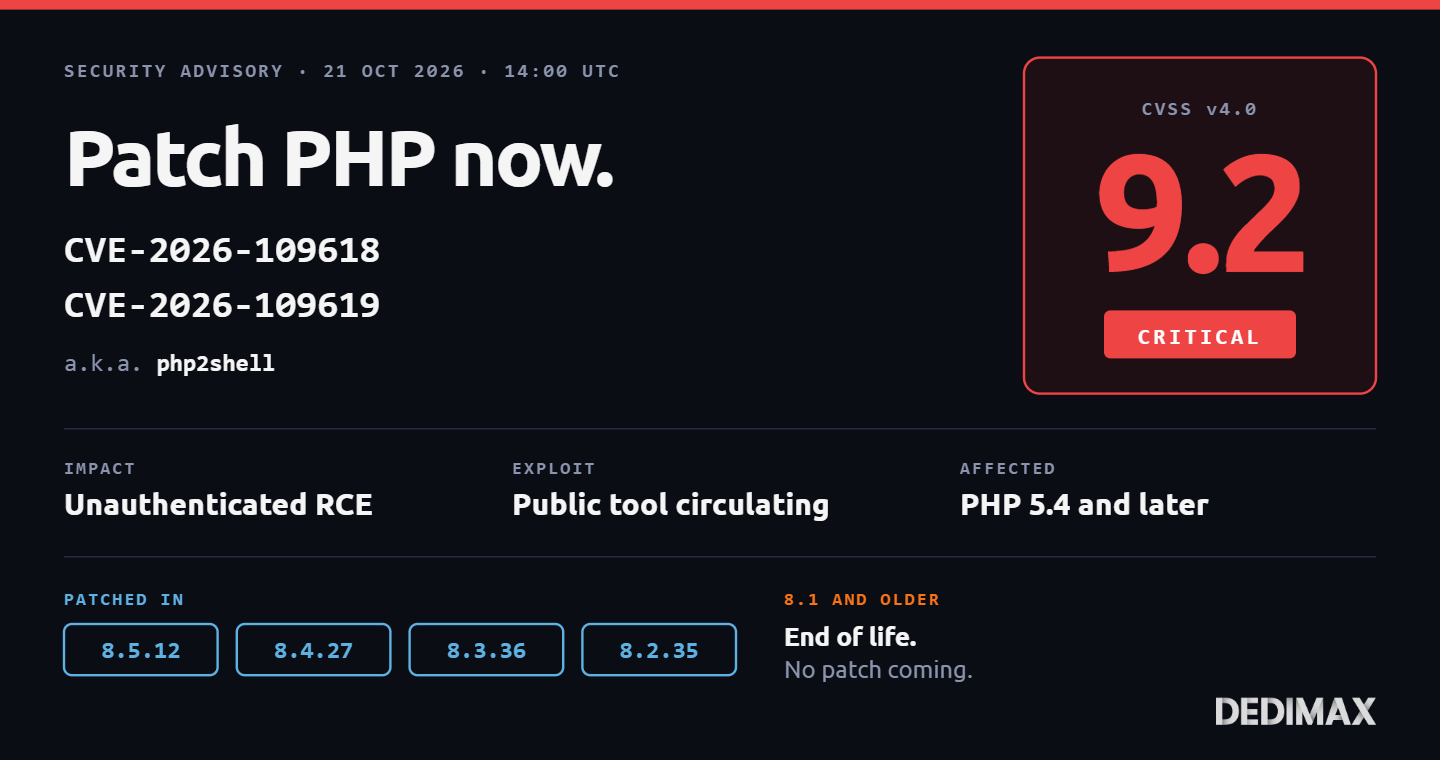
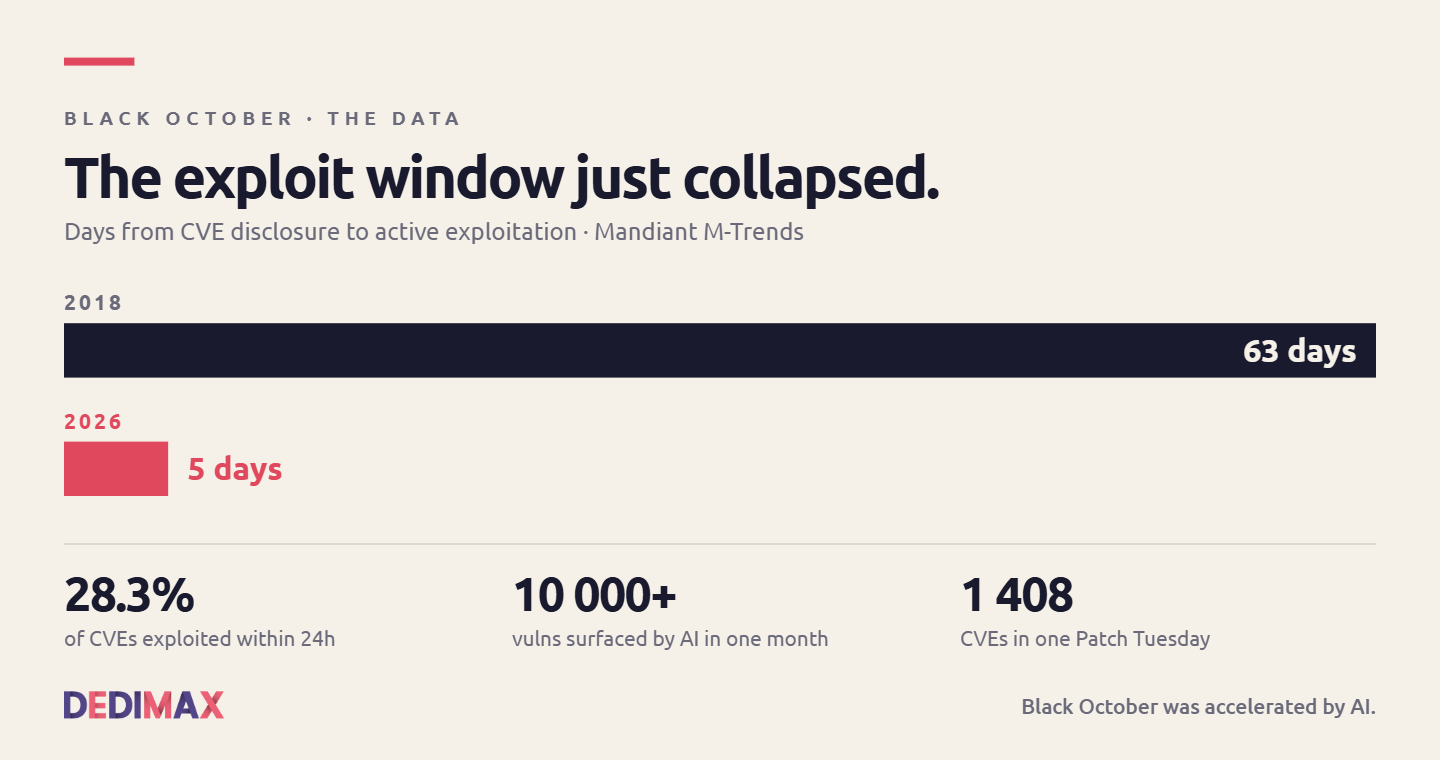
The last ten days have been nicknamed "Black October" in the security press. Two critical PHP RCE vulnerabilit...

On August 7, Anthropic shipped Claude Code v2.1.224 with a feature the changelog undersells: a single subcommand, claude self-hosted-runner, that lets Claude Code web, mobile, and desktop sessions execute on your own machines instead of Anthropic's managed infrastructure. Two follow-up patches (2.1.225 and 2.1.226) landed the next day with critical bug fixes. The public beta is available on Team and Enterprise plans, disabled by default, and it changes what compliance-heavy teams can do with Claude Code.
The feature exists to solve one specific problem: security and legal teams that killed AI coding tool procurement because "your code touches Anthropic's servers" is a non-starter in regulated environments. The self-hosted runner keeps repositories, build artifacts, and any secrets a session touches inside your network. Model inference still goes to Anthropic's API (or Bedrock, or Vertex, if configured), but the execution layer, the part that reads your files and runs your commands, moves to hardware you control.
This guide covers what the feature actually does, its real constraints, and a working deployment on a Linux server. The runner ships in the standard claude binary in v2.1.224 or later, so there's nothing extra to install.
There's a common misunderstanding worth clearing up first. "Self-hosted" in this context does not mean the Claude model runs on your infrastructure. Anthropic does not ship the model weights, and no docker pull claude-sonnet-5 exists. The model still runs at Anthropic, and inference requests still traverse the public internet to api.anthropic.com.
What moves to your infrastructure is the execution environment: the process that reads files, runs shell commands, spawns test suites, calls internal services, and holds any secrets those operations need. Three concepts drive the whole feature:
When a developer starts a cloud session from claude.ai and picks your environment from the picker, Anthropic's control plane queues that session on your runner instead of on Anthropic's hosted fleet.
The practical outcome: your code never leaves your network. What leaves your network is the reasoning traffic (prompt content, tool calls, responses) between the session and the Claude model. If your compliance requirements distinguish between "code + secrets stay put" and "prompt content routed to a vetted model provider", the runner covers the first and Anthropic's existing routing options (Bedrock, Vertex, Microsoft Foundry) cover the second. If your requirements ban both, this feature isn't the answer for you.
This works for you if:
This does NOT work for you if:
Modest, given what the feature does:
api.anthropic.com, claude.ai, and your git hostclaude binary)For a small team piloting the feature, a VPS at 9.99€/month with 4-8 GB RAM handles it comfortably. For a real production deployment serving multiple concurrent sessions, a dedicated server sized like your CI infrastructure is the right target. Every plan at Dedimax includes unlimited bandwidth, which matters when a session might pull large repositories or Docker images during execution.
Sign in to claude.ai as an Owner or admin. Navigate to admin settings and turn on Allow self-hosted environments. This is off by default at the org level, so nothing happens until an admin flips this toggle.
Create a new environment. Give it a descriptive name that identifies the purpose (prod-eu-runners, dev-sandbox, regulated-workloads). The console will show No runners deployed until you register your first runner.
SSH to the server as a user with sudo access:
ssh root@your-server-ipUpdate packages and install prerequisites:
apt update && apt upgrade -y
apt install -y ca-certificates curl git chrony
Verify Git version (must be 2.24 or newer):
git --versionIf your distro ships an older Git, add the official Git PPA or install from source. On Ubuntu 22.04+ and Debian 12+, the packaged version is recent enough.
Enable and start the NTP client:
systemctl enable --now chrony
chronyc tracking
Verify the last line shows a small time offset (well under 5 minutes). The runner refuses to authenticate if the clock drifts.
The runner ships as part of the standard Claude Code binary. Any of the official install methods work. The fastest for a Linux server:
curl -fsSL https://claude.ai/install.sh | shVerify the version is 2.1.224 or newer (2.1.226 recommended for the base-dir bug fix):
claude --versionIf you see an older version, upgrade before continuing. In versions prior to 2.1.224, the self-hosted-runner subcommand doesn't exist and claude --help will not show it.
Back in the claude.ai admin console, open the environment you created in Step 1. There's a Register a runner button. Click it and the console generates an environment secret (a single string), plus displays the exact command to run on your server.
Copy the secret. On your server, store it securely:
mkdir -p /etc/claude
umask 077
cat > /etc/claude/environment-secret << 'EOF'
YOUR_ENVIRONMENT_SECRET_HERE
EOF
chmod 600 /etc/claude/environment-secret
chown root:root /etc/claude/environment-secret
Never commit this file to git. Never bake it into a Docker image layer. This secret is what authenticates your runner as a legitimate destination for your organization's sessions.
The runner needs a working directory where it will check out repositories and spawn session processes. Create it explicitly:
mkdir -p /workspace
chown $(whoami):$(whoami) /workspace
The bug fix in v2.1.225 makes this important: earlier versions of the runner would register successfully with the environment even if it couldn't create the base directory, then fail every session that got queued. Since 2.1.225, the runner exits at startup with a clear error message if it can't create or write to the base directory. Either way, creating it upfront removes the failure mode.
The single command that turns your server into a Claude Code runner:
claude self-hosted-runner \
    --environment-secret-file /etc/claude/environment-secret \
    --base-dir /workspace \
    --capacity 4
Breaking down the flags:
--environment-secret-file: absolute path to the secret file from Step 4--base-dir: where the runner will check out repositories and run sessions--capacity: number of concurrent sessions this runner will accept. Start at 2-4 and tune based on loadAlternatively, use the environment variable form:
export SELF_HOSTED_RUNNER_ENVIRONMENT_SECRET=$(cat /etc/claude/environment-secret)
claude self-hosted-runner --base-dir /workspace --capacity 4
Watch the output. Within a few seconds, the runner should register and start polling for work. Back in the claude.ai admin console, the environment's status changes from No runners deployed to Healthy.
The runner serves a health probe on GET :8080/healthz by default, useful if you're wrapping it in a supervisor or a container orchestrator.
For anything beyond a quick test, run the runner through systemd. Create /etc/systemd/system/claude-runner.service:
[Unit]
Description=Claude Code self-hosted runner
After=network-online.target
Wants=network-online.target

[Service]
Type=simple
User=claude
Group=claude
WorkingDirectory=/workspace
Environment="HOME=/home/claude"
ExecStart=/usr/local/bin/claude self-hosted-runner \
    --environment-secret-file /etc/claude/environment-secret \
    --base-dir /workspace \
    --capacity 4
Restart=on-failure
RestartSec=10
StandardOutput=journal
StandardError=journal

[Install]
WantedBy=multi-user.target
Create the dedicated user and hand it ownership:
useradd -r -m -d /home/claude -s /bin/bash claude
chown -R claude:claude /workspace /home/claude
chown root:claude /etc/claude/environment-secret
chmod 640 /etc/claude/environment-secret
Enable and start:
systemctl daemon-reload
systemctl enable --now claude-runner.service
Follow the logs:
journalctl -u claude-runner.service -fThe runner should stay Healthy in the admin console. Any auth or connectivity error appears in the journal.
From any developer's browser, open claude.ai and start a new Claude Code session. In the environment picker, your registered environment should appear alongside Anthropic's default. Select it, and the session queues to your runner instead of Anthropic's fleet.
A useful sanity test for the developer: ask the session to run a command that only works inside your network, like curling an internal service or resolving an internal DNS name. If the runner is deployed correctly, the command succeeds because the session is executing on your machine, inside your network.
If you'd rather not give the runner access to git credentials directly, Anthropic offers a git proxy that clones through their infrastructure using session-scoped tokens. Add the flag:
claude self-hosted-runner \
    --environment-secret-file /etc/claude/environment-secret \
    --base-dir /workspace \
    --capacity 1 \
    --use-anthropic-git-proxy
Two constraints with this option: the proxy requires --capacity 1 (one session at a time), and your git host has to be reachable from Anthropic's infrastructure. If your repos live behind a corporate firewall unreachable from the public internet, this won't work and you'll need to provision git credentials on the runner directly.
For any real workload, run more than one. Each runner is a single process, and its capacity is bounded by your CPU, RAM, and disk I/O. Scale horizontally by starting more runners against the same environment.
The console groups all runners under the environment. Sessions get distributed across healthy runners automatically. If one runner dies or gets restarted for maintenance, sessions queue to the others.
For Docker or Kubernetes deployments, the runner works cleanly inside a container. A minimal Dockerfile skeleton:
FROM debian:12-slim

ARG CLAUDE_CODE_VERSION=2.1.226

RUN apt-get update && apt-get install -y \
    ca-certificates curl git \
    && rm -rf /var/lib/apt/lists/*

RUN curl -fsSL https://claude.ai/install.sh | sh

RUN useradd -m -d /home/claude -s /bin/bash claude
USER claude
WORKDIR /workspace

ENTRYPOINT ["claude", "self-hosted-runner"]
CMD ["--base-dir", "/workspace", "--capacity", "4"]
Pass the environment secret through a mounted file or a Kubernetes secret, never bake it into the image layers. Give the container network egress to api.anthropic.com, claude.ai, and your git host.
The runner itself is lightweight (a few hundred MB of RAM idle), but each session it spawns behaves like a CI job. A session compiling a large TypeScript project, running a full test suite, or building a Docker image consumes real CPU and memory during that work.
Rough sizing guidance:
Storage: sessions clone repositories under the base directory. Plan for the aggregate size of the repos your team works on, times a few for parallel sessions. NVMe storage makes clone and test operations noticeably faster.
Bandwidth: session traffic between the runner and Anthropic is small (tool calls and responses, not raw code). What consumes bandwidth is the repository clones and any external dependencies your builds pull in. Unlimited bandwidth on the Dedimax dedicated servers removes this as a variable.
Runner registers as Unhealthy in the admin console. The most common cause is clock skew. Verify with chronyc tracking or timedatectl status. Fix NTP and restart the runner.
Sessions fail immediately with "no workspace available". The runner registered but can't write to --base-dir. Since v2.1.225 this is caught at startup, but if you're on 2.1.224 exactly, upgrade to 2.1.226 to get the fix.
Sessions fail to clone a repository. If you're using --use-anthropic-git-proxy, verify your git host is reachable from Anthropic's infrastructure. If you're not using the proxy, verify the runner user has the git credentials it needs (SSH key, PAT, GitHub App token) and that non-interactive git operations work when you SSH in as that user.
Runner locks to the wrong developer. A runner locks to the first user account that claims a session on it, to prevent different developers' checked-out code from mixing on disk. If you need a runner for a different user, provision a separate runner. Don't try to share a single runner across users.
Session content still visible in Anthropic logs. This is expected. The runner keeps your code local, but the session's prompt content (what the model reasons about) still transits Anthropic's infrastructure. If your compliance requires the reasoning itself to stay local, this feature doesn't solve that problem, and the honest answer is that no cloud LLM does today.
The self-hosted runner is public beta as of the time of writing. Anthropic's changelog has been shipping fixes weekly since 2.1.224, so keep an eye on the release notes for behavioral changes. The SendMessage and ListAgents tools added in the same release enable cross-session coordination, which starts to make Claude Code look less like a single-session tool and more like a small distributed agent system.
For teams that had legitimate reasons to keep Claude Code out of production because of the "code touches Anthropic's servers" concern, this release removes that specific blocker. For everyone else, it's a useful pattern to know about even if you don't need it today: the architecture separates the reasoning layer from the execution layer, which is a design pattern that will show up in more AI tooling as the space matures.
If you need help sizing infrastructure to run production runners, our Cloud, VPS, and Dedicated comparison guide covers the trade-offs between the three tiers for exactly this kind of workload.
Deploy your own VPS
300+ apps in one click, full root access, ready in minutes.
From 9,99€/mes
The last ten days have been nicknamed "Black October" in the security press. Two critical PHP RCE vulnerabilit...
Two critical remote code execution vulnerabilities in PHP were patched today, October 21, 2026 at 14:00 UTC. T...
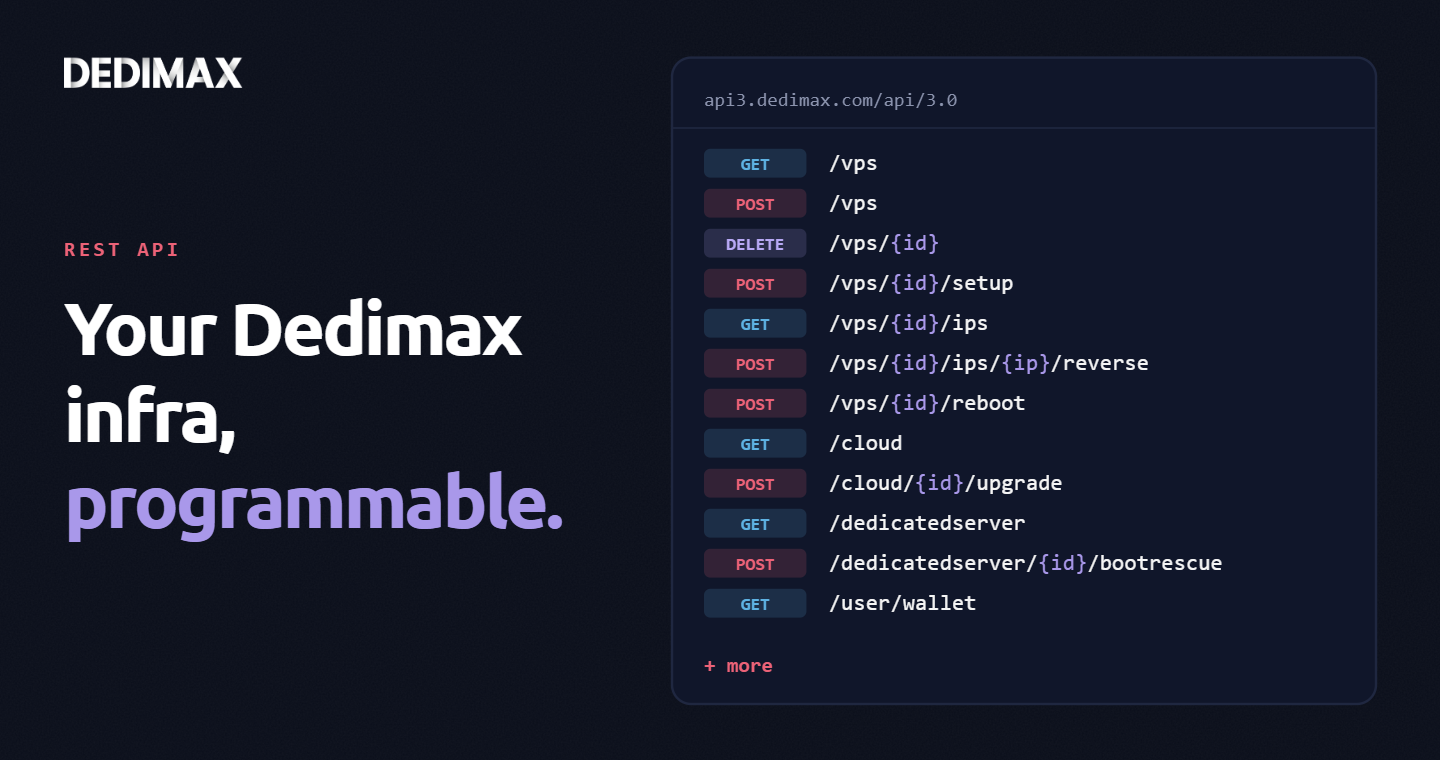
Clicking through a panel to provision a VPS, trigger a reboot, or change a reverse DNS record is fine when you...
Toma el control de tu servidor dedicado (configuraciones, datos...) sin límites en el uso de aplicaciones.
Que estas esperando ?
Te esperamos en nuestro blog. Guías y tutoriales publicados regularmente (sysadmin, gaming, devops...) !
Permítame verificar