
If you've been watching your monthly Vercel bill climb past what your servers actually cost, you're not alone. The same story plays out for Railway, Render, Heroku, and the rest of the managed PaaS world. Per-seat fees, bandwidth overages, build minute caps, function execution charges. None of it scales linearly with your actual usage, and all of it ends with the same realization: a server at 9.99€/month could run everything you're paying 200€/month for.
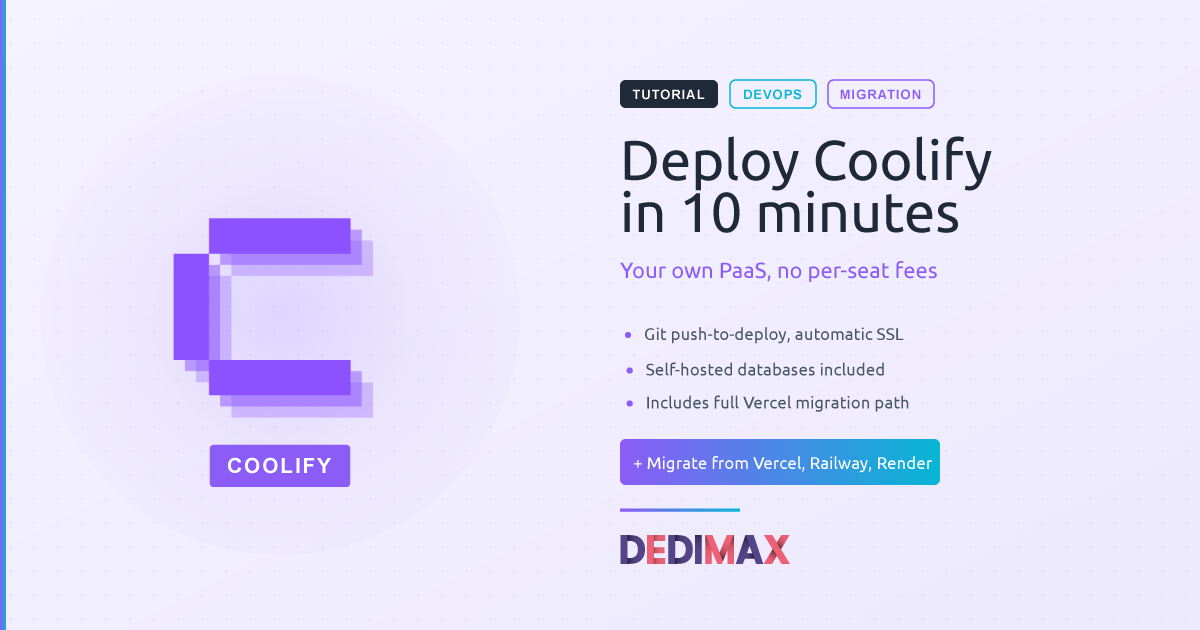
Coolify is what makes that switch realistic. It's an open-source PaaS that gives you the same push-to-deploy experience as Vercel, on a server you control. Git integration, automatic SSL, database management, environment variables, preview deployments. All of it, on your own infrastructure.
This guide covers the full path: install Coolify on a server in 10 minutes, then migrate a real Vercel project to it.
Coolify itself uses about 430 MB of RAM at idle, leaving the rest for your applications. On a 4 GB machine, you can comfortably run 8 to 10 small app containers alongside the Coolify overhead. For light usage, a Cloud server at 3.90€/month works. For real production with multiple apps, a VPS at 9.99€/month with 4 GB is the sweet spot. For heavy workloads with dozens of apps, large databases, or build-intensive frontends, a dedicated server makes more sense.
A note before you start: don't install Coolify on a server that already has Nginx, Apache, or any service using ports 80, 443, or 8000. Coolify ships with Traefik as its built-in reverse proxy, and port conflicts will break the install. Use a fresh server.
SSH into your server as root or a sudo user:
ssh root@your-server-ipUpdate everything:
apt update && apt upgrade -yMake sure curl is installed (it usually is, but worth checking):
apt install curl -yOpen the ports Coolify needs in your firewall. If you're using UFW (see our firewall guide):
ufw allow 22/tcp
ufw allow 80/tcp
ufw allow 443/tcp
ufw allow 8000/tcp
ufw allow 6001/tcp
ufw allow 6002/tcp
ufw enable
Port 8000 is for the initial Coolify dashboard. Once you set up a domain, you can close it back down.
This is the part that does all the work:
curl -fsSL https://cdn.coollabs.io/coolify/install.sh | bashThe script handles everything: it installs Docker, Docker Compose, pulls the Coolify containers, sets up the database, and starts the stack. Takes about 3 to 5 minutes depending on your server's network speed.
When it finishes, you'll see output ending with the URL to access your Coolify instance:
Coolify is ready. Please visit http://your-server-ip:8000Open http://your-server-ip:8000 in your browser. The first request might take 30 to 60 seconds because the containers are still warming up.
You'll land on the admin signup page. Fill in your email and password. The first user becomes admin. There's no default credential to override, so make sure you keep these somewhere safe. If you lose them, recovery means SSH'ing in and resetting via the CLI.
After signup, Coolify walks you through a quick onboarding. The server you installed it on appears as "localhost" by default. You can also add remote servers later if you want to manage multiple machines from one dashboard.
Accessing Coolify on port 8000 over HTTP works, but you don't want to keep it like that. Connect a domain and Coolify will handle SSL automatically via Let's Encrypt.
In your DNS provider, add two A records pointing to your server's IP:
A    coolify.yourdomain.com    YOUR_SERVER_IP
A    *.apps.yourdomain.com     YOUR_SERVER_IP
The wildcard record *.apps.yourdomain.com is what makes preview deployments work. Each deployed app gets its own subdomain, like myapp.apps.yourdomain.com, without you needing to add a DNS record for each one.
Wait 1 to 5 minutes for DNS propagation. Then in the Coolify dashboard:
coolify.yourdomain.comCoolify will request a Let's Encrypt certificate, restart Traefik, and switch to HTTPS. Refresh and you should be on the new domain over HTTPS.
You can now close port 8000 in your firewall:
ufw delete allow 8000/tcpTime to deploy something real. The flow is the same whether it's a Next.js app, a Django backend, a Go API, or a static site.
In the Coolify dashboard:
*.apps.yourdomain.com)That's the full deployment flow. Coolify clones the repo, runs the build, spins up a container, configures Traefik routing, and provisions an SSL certificate. The first build takes longer because it's pulling base images. Subsequent deploys reuse the cache and finish in under a minute.
Push to your repo and Coolify automatically redeploys (you'll need to connect a GitHub App or webhook for this to work). Preview deployments work the same way: every PR gets its own subdomain.
Now the part most people came here for. Here's how to move a real project off Vercel without breaking production.
Before touching anything, write down what your Vercel project actually uses. Different features have different migration paths.
Standard Next.js, Nuxt, SvelteKit, or static site. Easiest case. Coolify handles these natively via Nixpacks or with a Dockerfile. No code changes needed.
Edge functions. Vercel's Edge Runtime is proprietary. If your Edge Functions are simple (auth checks, redirects, A/B testing), you can move them to your Node.js or Next.js middleware running on Coolify. Complex edge logic might need rewriting.
Vercel Postgres / Vercel KV / Vercel Blob. These are managed databases on Vercel's infrastructure. You'll need to migrate to your own. Coolify has built-in PostgreSQL, MySQL, MongoDB, and Redis with one-click deployment. Vercel Blob can be replaced with self-hosted MinIO or external object storage.
Cron jobs. Vercel Cron becomes a regular cron job on your server, or a scheduled task in your application code.
Environment variables. Export them from Vercel's dashboard (Settings → Environment Variables → Three dots → Download). You'll paste them into Coolify in the next steps.
If your app needs a database, set it up in Coolify before deploying the app itself. In the dashboard:
Then dump your data from Vercel Postgres:
pg_dump $VERCEL_POSTGRES_URL > backup.sqlAnd restore into your Coolify database:
psql $COOLIFY_POSTGRES_URL < backup.sqlSame pattern for MySQL (mysqldump / mysql) and MongoDB (mongodump / mongorestore).
Follow Step 5 above. When you reach the environment variables section, paste in the values you exported from Vercel, but update the database connection strings to point to your Coolify databases.
If you used Vercel Blob, point your BLOB_* environment variables to your new object storage endpoint (MinIO, S3, or whatever you migrated to).
Deploy first to a subdomain like staging.yourdomain.com. Don't switch DNS yet.
Run through the critical paths: sign up, login, key features, payment flow if you have one. Watch the Coolify logs in real time:
docker logs -f coolify-app-yourappYou can also do this from the Coolify UI under your application's Logs tab.
Once staging works, switch your production domain. In your DNS provider, change the A record (or CNAME if you use one) to point at your Coolify server. Update the domain in Coolify to match.
DNS propagation takes anywhere from a few minutes to a few hours depending on your TTL. During this window, some users will still hit Vercel. Keep your Vercel deployment running until you confirm 100% of traffic has switched over (24 to 48 hours is a safe margin).
Once you've confirmed everything is working, delete the Vercel project. Bill gone.
Coolify dashboard isn't loading. The containers might still be starting. Wait 60 seconds and refresh. If it still doesn't load, check docker ps to see if all Coolify containers are running.
SSL certificate not issuing. Let's Encrypt rate-limits requests. If you've been retrying, you might hit the limit. Wait an hour and try again. Also confirm your DNS A record actually points at your server (use dig coolify.yourdomain.com).
Build keeps failing with "out of memory". Coolify shares RAM with the apps it builds. Large frontend builds (Next.js, Nuxt) can eat 2 GB+ during compilation. Upgrade to a 4 GB or 8 GB server, or use a Dockerfile with multi-stage builds to keep peak memory lower.
Database connection refused from app container. Coolify databases are reachable from other containers via their internal hostname, not the public IP. Use the connection string Coolify provides (it looks like postgres://user:pass@some-name:5432/db), not the external one.
Preview deployments don't get a subdomain. Your wildcard DNS record isn't set, or it's set but hasn't propagated. Confirm with dig random.apps.yourdomain.com (should return your server IP).
Running Coolify on a 9.99€/month server gives you:
The PaaS providers charge per most of those. Per seat, per build minute, per GB of bandwidth, per function execution. For an indie developer or small agency, the savings add up fast.
The trade-off is that you're now responsible for the server. Updates, backups, monitoring. For most developers reading this, that trade is worth it. For those who'd rather pay to not think about infrastructure, the managed options exist for a reason.
If you decide to go self-hosted, deploy Coolify on a Dedimax Cloud server, VPS, or dedicated server and you're up in 10 minutes. Unlimited bandwidth is included on all plans, which matters when you're running multiple apps and preview deployments off the same machine.
Take control of your dedicated server (settings, data ...) without any limits in apps usage.
What are you waiting for ?
We’re waiting for you on our blog. New guides and tutorials published regularly (sysadmin, gaming, devops...) !
Let me check