tutorial
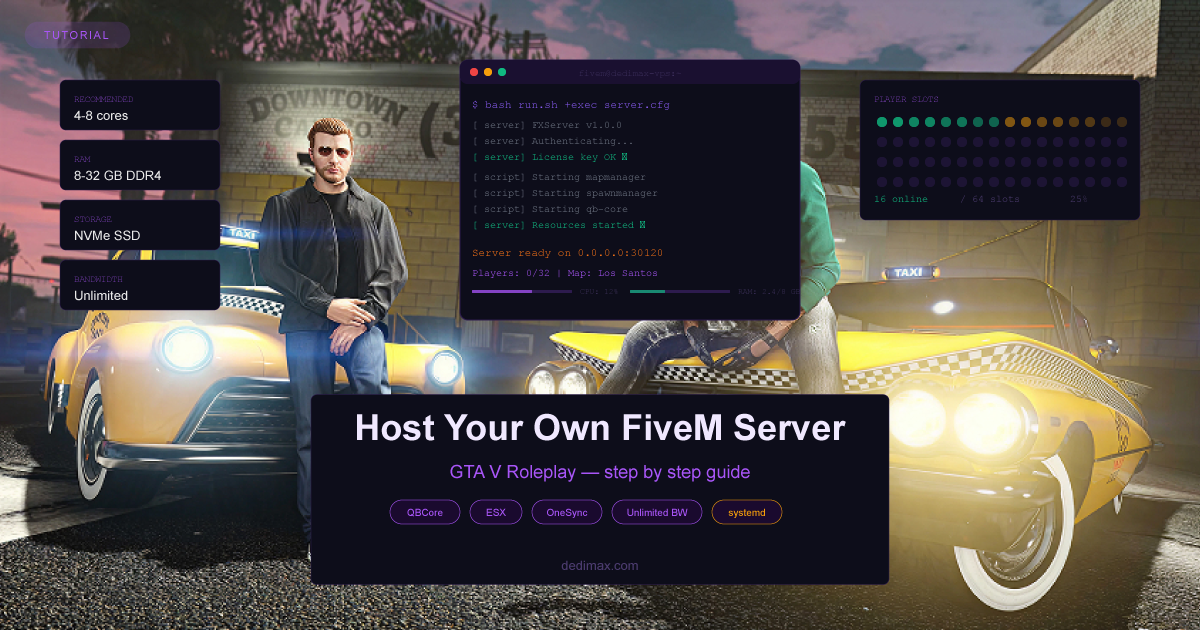
Host Your Own FiveM Server
If you've ever played on a GTA V roleplay server and thought "I could run one of these," you're probably right...


Palworld left Early Access as a free 1.0 update in July 2026, and if you've been running a server through Early Access, it needs updating. If you haven't set one up yet, now is a great time to start. The 1.0 release brings native server clustering, save stability improvements, and enough new content that most communities are starting fresh worlds anyway.
This guide covers the full path: what specs you actually need, installing on Linux with SteamCMD, tuning the settings that matter, running it as a systemd service, backing up your saves properly, and a look at the new clustering feature.
Peer-hosted worlds work fine until the host closes the game. Then everyone gets kicked, progress that wasn't saved is lost, and nobody can play until the host comes back online. For a friend group that plays occasionally, that's the whole experience.
A dedicated server changes that. The world runs 24/7 on infrastructure that doesn't care whether you're playing. Your friends can drop in whenever they want. Nothing breaks when the person who "hosts" goes to sleep. You control who joins, what the rates are, whether PvP is on, and whether cheats are allowed.
The trade-off is that you're responsible for the server. Updates, backups, uptime, ports, firewalls. If you're comfortable with a Linux terminal, that's a couple of hours of setup and a few minutes of maintenance per patch. If not, this is probably where a managed hosting option makes more sense.
Palworld's dedicated server is heavier than most survival games. Pocketpair officially recommends 16 GB of RAM even for small servers, because memory use climbs over time. That's not marketing hyperbole. It's what the server actually needs.
Here's what maps to real-world usage:
CPU: Palworld's simulation is largely single-thread-bound. Clock speed matters far more than core count. A modern CPU with 4 to 6 cores at high frequency (Intel Core Ultra, AMD Ryzen 9000, or a bare-metal Xeon with strong single-thread performance) outperforms a many-core server running at lower clocks. The 1.0 release added -UseMultithreadForDS which spreads more work across cores, but the physics and Pal AI still hammer one thread hard.
Storage: 30 GB minimum. The server itself is 12 to 15 GB downloaded, plus saves and backups. SSD is not optional. NVMe helps with save write latency on large worlds.
Bandwidth: Palworld is efficient on the wire once you're connected, but sync spikes when players cross zone boundaries. Budget for 5 to 10 Mbps upstream per player. Unmetered bandwidth is a good idea for anything above 4 or 5 concurrent players.
Recommended plans on Dedimax:
All Dedimax plans include unlimited bandwidth, which matters when you have a full server pulling and pushing state constantly.
SSH in as root or a sudo user:
ssh root@your-server-ipUpdate the system:
apt update && apt upgrade -yEnable the multiverse repository (SteamCMD lives there on Ubuntu):
add-apt-repository multiverse -y
dpkg --add-architecture i386
apt update
Accept the Steam license non-interactively and install SteamCMD:
echo steam steam/question select "I AGREE" | debconf-set-selections
echo steam steam/license note '' | debconf-set-selections
apt install steamcmd -yRunning any game server as root is asking for trouble. If a vulnerability shows up in the server binary or one of its dependencies, root access to the whole box is the last thing you want to hand out.
Create a dedicated user:
adduser --disabled-password --gecos "" palworldSwitch to that user for the rest of the install:
su - palworldEverything from now on happens as palworld, not root.
Palworld's dedicated server has its own Steam app ID (2394010) and downloads for free through anonymous login. You don't need to own Palworld to run the server. Only players connecting to it need the game.
Create a directory and run SteamCMD:
mkdir -p ~/palworld-server
cd ~/palworld-server
steamcmd +force_install_dir /home/palworld/palworld-server +login anonymous +app_update 2394010 validate +quit
The initial download is 12 to 15 GB. On a decent connection, this takes 5 to 15 minutes. When it completes, you'll see Success! App '2394010' fully installed.
Before configuring anything, launch the server once to generate the default config files:
cd /home/palworld/palworld-server
./PalServer.sh
Let it run for about 10 seconds, then stop it with Ctrl+C. This creates the Pal/Saved/Config/LinuxServer directory with a default PalWorldSettings.ini template that you'll edit next.
Palworld's config path is a bit awkward. The template lives at DefaultPalWorldSettings.ini but the file the server actually reads is Pal/Saved/Config/LinuxServer/PalWorldSettings.ini. Copy the template into place:
cp DefaultPalWorldSettings.ini Pal/Saved/Config/LinuxServer/PalWorldSettings.iniEdit the config:
nano Pal/Saved/Config/LinuxServer/PalWorldSettings.iniThe entire config is on one long line inside a single OptionSettings=(...) block. Don't reformat it into multiple lines, the server won't parse it. Just find and change the values you care about.
The settings that matter for most communities:
ServerName="My Palworld Server"
ServerDescription="Welcome to the crew"
ServerPassword=""
AdminPassword="pick a strong password here"
ServerPlayerMaxNum=32
PublicPort=8211
RCONEnabled=True
RCONPort=25575
bIsMultiplay=True
A few tuning knobs worth touching:
ServerPlayerMaxNum: hard cap 32 until 1.0 clustering. Set it lower if your hardware isn't ready for that many players.AdminPassword: without this, you can't use admin commands in-game. Set it, remember it.RCONEnabled=True and RCONPort=25575: lets you run admin commands remotely, useful for scripted moderation.DifficultyRate, PalCaptureRate, PalSpawnNumRate, PalDamageRateAttack, PalDamageRateDefense: adjust to your community's preferences. Defaults are balanced for solo play, which feels too slow for many multiplayer groups.DeathPenalty: values are None, Item, ItemAndEquipment, All. Start with Item for casual groups, All for hardcore.bEnableInvaderEnemy: NPC raids on your bases. Disable if your group hates surprises.Save with Ctrl+O, Enter, Ctrl+X.
Running the server in screen or tmux works for testing. For anything you actually rely on, use systemd. It handles auto-start on boot, restart on crash, clean shutdowns, and centralized logging.
Exit back to root:
exitCreate the service file:
nano /etc/systemd/system/palworld.servicePaste:
[Unit]
Description=Palworld Dedicated Server
After=network.target

[Service]
Type=simple
User=palworld
Group=palworld
WorkingDirectory=/home/palworld/palworld-server
ExecStart=/home/palworld/palworld-server/PalServer.sh -useperfthreads -NoAsyncLoadingThread -UseMultithreadForDS -publiclobby
Restart=on-failure
RestartSec=15
LimitNOFILE=100000

[Install]
WantedBy=multi-user.target
The performance flags matter:
-useperfthreads: uses performance thread configuration for better CPU utilization-NoAsyncLoadingThread: disables async loading which is buggy on some Linux kernels-UseMultithreadForDS: spreads more work across cores (added in 1.0)-publiclobby: makes the server visible in the community browser. Remove this flag for private servers.Reload systemd and enable the service:
systemctl daemon-reload
systemctl enable palworld
systemctl start palworld
Check that it's running:
systemctl status palworldWatch the live logs:
journalctl -u palworld -fYou're looking for LogInit: Displayed all non-command line... followed by the server booting to steady state. First launch after this takes 60 to 90 seconds while it initializes the world.
Palworld uses port 8211 for gameplay (UDP, not TCP). The community browser uses 27015 (UDP as well).
If you're following our UFW guide:
ufw allow 22/tcp
ufw allow 8211/udp
ufw allow 27015/udp
ufw enable
If you enabled RCON in Step 5, only allow the RCON port from your admin IP:
ufw allow from YOUR_ADMIN_IP to any port 25575Never expose RCON to the open internet. Anyone who gets your RCON password gets full admin control over the server.
Launch Palworld on your PC. From the main menu:
your.server.ip:8211If you set a ServerPassword, the game will prompt for it.
If your server is listed as public (-publiclobby in systemd and bIsMultiplay=True in config), it should also appear in the community browser within a few minutes. If it doesn't show up there but direct connect works, the culprit is almost always port 27015 being blocked somewhere.
Palworld has had documented save corruption issues throughout Early Access, and 1.0 hasn't fully eliminated them. If your world matters to your community, back it up on a schedule.
Saves live at /home/palworld/palworld-server/Pal/Saved/SaveGames/. Everything under that path is what you need to preserve.
Create a backup script at /home/palworld/backup.sh:
#!/bin/bash
BACKUP_DIR=/home/palworld/backups
DATE=$(date +%Y%m%d-%H%M%S)
mkdir -p $BACKUP_DIR

# Compress the save directory
tar czf $BACKUP_DIR/palworld-save-$DATE.tar.gz -C /home/palworld/palworld-server Pal/Saved/SaveGames/

# Keep the last 30 days
find $BACKUP_DIR -name "palworld-save-*.tar.gz" -mtime +30 -delete
Make it executable and add it to cron:
chmod +x /home/palworld/backup.sh
crontab -e
Add:
0 */6 * * * /home/palworld/backup.shThis runs a backup every 6 hours and keeps a rolling 30-day window. For anything critical, ship those backups offsite too (S3, another server, or cold storage).
To restore from a backup:
systemctl stop palworld
cd /home/palworld/palworld-server
rm -rf Pal/Saved/SaveGames
tar xzf /home/palworld/backups/palworld-save-YYYYMMDD-HHMMSS.tar.gz
chown -R palworld:palworld Pal/
systemctl start palworld
Test the restore process before you need it. The middle of an emergency is a bad time to discover your backup format is wrong.
Palworld patches often. Every patch requires your server to match the client version, otherwise players get "server version mismatch" errors.
The update process:
systemctl stop palworld
su - palworld
cd ~/palworld-server
steamcmd +force_install_dir /home/palworld/palworld-server +login anonymous +app_update 2394010 validate +quit
exit
systemctl start palworld
Save the whole thing as a script (/home/palworld/update.sh) and run it whenever a patch drops. Some admins run this on a nightly cron to stay auto-updated, but that risks starting the server on a broken patch. Manual updates are safer for anything you care about.
"Server not appearing in community list". Almost always a port issue. Verify 8211/udp and 27015/udp are open on both your OS firewall and any cloud security group. If it still won't show up, direct connect by IP works and bypasses the community browser entirely.
"Server version mismatch". A patch dropped and your server hasn't been updated. Run the update procedure above.
"Failed to log in with EOS". Epic Online Services occasionally has outages that affect Palworld's account layer. Check status.epicgames.com. Usually resolves on its own within an hour.
Server keeps OOM-killing. Memory pressure. Either upgrade to more RAM, or reduce ServerPlayerMaxNum and player-facing memory settings. Palworld's memory usage climbs over the lifetime of a session, so a server that's been up for a week uses more RAM than one that just booted. Nightly restarts help.
Low FPS in-game when the server is under load. This is single-thread CPU bottleneck. High-frequency modern CPUs help. If you're on an older server, upgrade the hardware rather than trying to tune around it.
Save corruption after a crash. Restore from the most recent backup. If it happens repeatedly, check disk health (smartctl) and RAM (memtest). Consistently corrupted saves are usually a hardware symptom.
The July 2026 1.0 update introduced native server clustering, which lets multiple Palworld servers behave as one large world. Players can move between servers seamlessly, effectively lifting the 32-player cap by chaining instances together.
Clustering is significantly more involved than a single-server setup. It requires shared state coordination between instances, careful network topology, and matching versions across all nodes. Anyone considering it should read Pocketpair's official clustering documentation first, and plan for a dedicated server per cluster node with a fast internal network between them.
For most communities, a single well-tuned 32-player server is more than enough. Clustering makes sense for larger communities that have outgrown a single instance or for content creators running events with hundreds of players. If you're in that territory, it's a full separate topic worth its own guide.
Running a small Palworld server for you and a few friends starts at 3.90€/month on a Cloud server, which fits the 4 to 8 player range comfortably.
A serious community server (16 to 32 players, stable long-term) runs on a VPS at 9.99€/month with 16 GB RAM, or on a dedicated gaming server if you want the extra headroom and single-thread performance.
All plans include unlimited bandwidth and DDoS protection. Palworld servers get targeted attacks occasionally, especially popular public ones, and the built-in protection saves you from having to think about it.
No commitment on any plan. Run a server for a month during a launch event, cancel if the community drifts to another game. You're not locked in.
Host your own game server
Low-latency servers close to your players, DDoS protection included.
From $11.99/mo
If you've ever played on a GTA V roleplay server and thought "I could run one of these," you're probably right...
In recent years, the landscape of online gaming has seen a significant shift towards self-hosted dedicated ser...
The last ten days have been nicknamed "Black October" in the security press. Two critical PHP RCE vulnerabilit...
Take control of your dedicated server (settings, data ...) without any limits in apps usage.
What are you waiting for ?
We’re waiting for you on our blog. New guides and tutorials published regularly (sysadmin, gaming, devops...) !
Let me check