

In recent years, the landscape of online gaming has seen a significant shift towards self-hosted dedicated servers, providing players with greater control, customization, and community engagement. This paradigm shift has led to the emergence of a vibrant ecosystem of self-hosted gaming communities, where players can create and curate their own gaming experiences. Among the multitude of games available for self-hosting, certain titles have risen to prominence, captivating players with their immersive gameplay, modding capabilities, and dedicated server support.
In this article, we’ll delve into the world of self-hosted gaming and explore the top five video games that have become staples of the self-hosted gaming community. From crafting and survival to fast-paced first-person shooters, these games offer something for every type of gamer, providing endless hours of entertainment and camaraderie. Join us as we take a closer look at these gaming juggernauts and discover why they continue to reign supreme in the realm of self-hosted gaming.
The 5 most popular self-hosted games are
These games are very popular for self-hosting because of their multiplayer nature and their ability to customize servers, allowing players to create unique experiences and play with their friends or community.
How do you install these games on your dedicated server or VPS ?
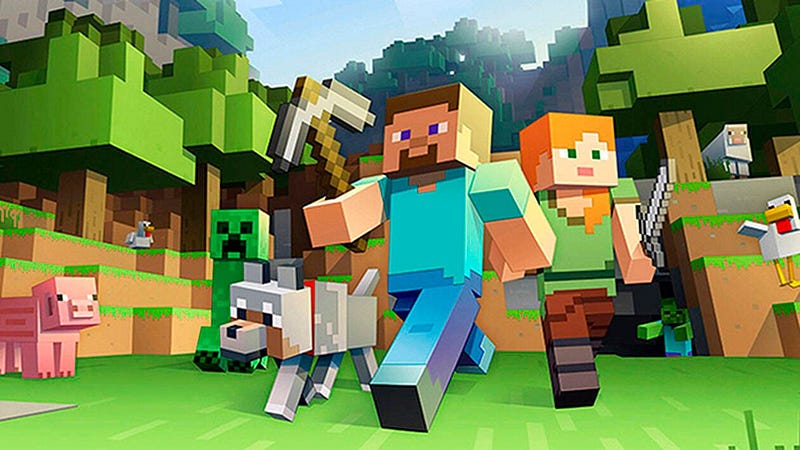
wget https://minecraft.net/download/server2. Create Server Directory
mkdir minecraft_server3. Move and Extract Minecraft Server Files
mv server minecraft_server/
cd minecraft_server/
java -Xmx1024M -Xms1024M -jar server.jar nogui
4. Accept the Minecraft EULA
Open the eula.txt file and change eula=false to eula=true
5. Launch Minecraft Server
java -Xmx1024M -Xms1024M -jar server.jar nogui
wget https://steamcdn-a.akamaihd.net/client/installer/steamcmd_linux.tar.gz2. Extract package
tar -xvzf steamcmd_linux.tar.gz3. Download CS:GO Server
./steamcmd.sh +login anonymous +force_install_dir ./csgo +app_update 740 validate +quit4. Navigate to CS:GO Server Directory
cd csgo5. Configure Server Settings
Edit the server.cfg file with your desired server settings.
6. Launch CS:GO Server
./srcds_run -game csgo -console -usercon +game_type 0 +game_mode 1 +mapgroup mg_active +map de_dust2
wget https://steamcdn-a.akamaihd.net/client/installer/steamcmd_linux.tar.gz2. Extract package
tar -xvzf steamcmd_linux.tar.gz3. Download ARK Server
./steamcmd.sh +login anonymous +force_install_dir ./ark +app_update 376030 validate +quit4. Navigate to ARK Server Directory
cd ark/ShooterGame/Binaries/Linux/5. Launch ARK Server
./ShooterGameServer TheIsland?SessionName=MyServer?ServerPassword=MyPassword?ServerAdminPassword=AdminPassword -server -log
wget https://steamcdn-a.akamaihd.net/client/installer/steamcmd_linux.tar.gz2. Extract package
tar -xvzf steamcmd_linux.tar.gz3. Download Rust Server
./steamcmd.sh +login anonymous +force_install_dir ./rust +app_update 258550 validate +quit4. Navigate to Rust Server Directory
cd rust5. Configure Server Settings
Edit the server.cfg file with your desired server settings.
6. Launch Rust Server
./RustDedicated -batchmode +server.port 28015 +server.identity "rustserver" +server.level "Procedural Map" +server.seed 12345 +server.worldsize 4000 +server.maxplayers 50 +server.hostname "My Rust Server" +server.description "Welcome to my Rust server!" +server.url "http://myrustserver.com" +server.headerimage "http://myrustserver.com/banner.jpg" +server.saveinterval 300 +server.globalchat true +server.tickrate 30.0 +server.secure true +server.steamgroup "123456" +server.world "myservermap" +server.password "mypassword" +server.identity "rustserver" +server.levelurl "myservermap" +server.seed 12345 +server.worldsize 4000
wget https://steamcdn-a.akamaihd.net/client/installer/steamcmd_linux.tar.gz2. Extract package
tar -xvzf steamcmd_linux.tar.gz3. Download Valheim Server
./steamcmd.sh +login anonymous +force_install_dir ./valheim +app_update 896660 validate +quit4. Navigate to Valheim Server Directory
cd valheim5. Launch Valheim Server
./valheim_server.x86_64 -name "MyServer" -port 2456 -world "Dedicated" -password "mypassword" -public 1These command-line instructions will guide you through the process of installing each game on your dedicated server, allowing you to set up your own gaming environment for you and your friends.
Have fun !
Toma el control de tu servidor dedicado (configuraciones, datos...) sin límites en el uso de aplicaciones.
Que estas esperando ?
Te esperamos en nuestro blog. Guías y tutoriales publicados regularmente (sysadmin, gaming, devops...) !
Permítame verificar