tutorial
Critical PHP RCE Vulnerabilities (CVE-2026-109618 & CVE-2026-109619): What To Do Right Now
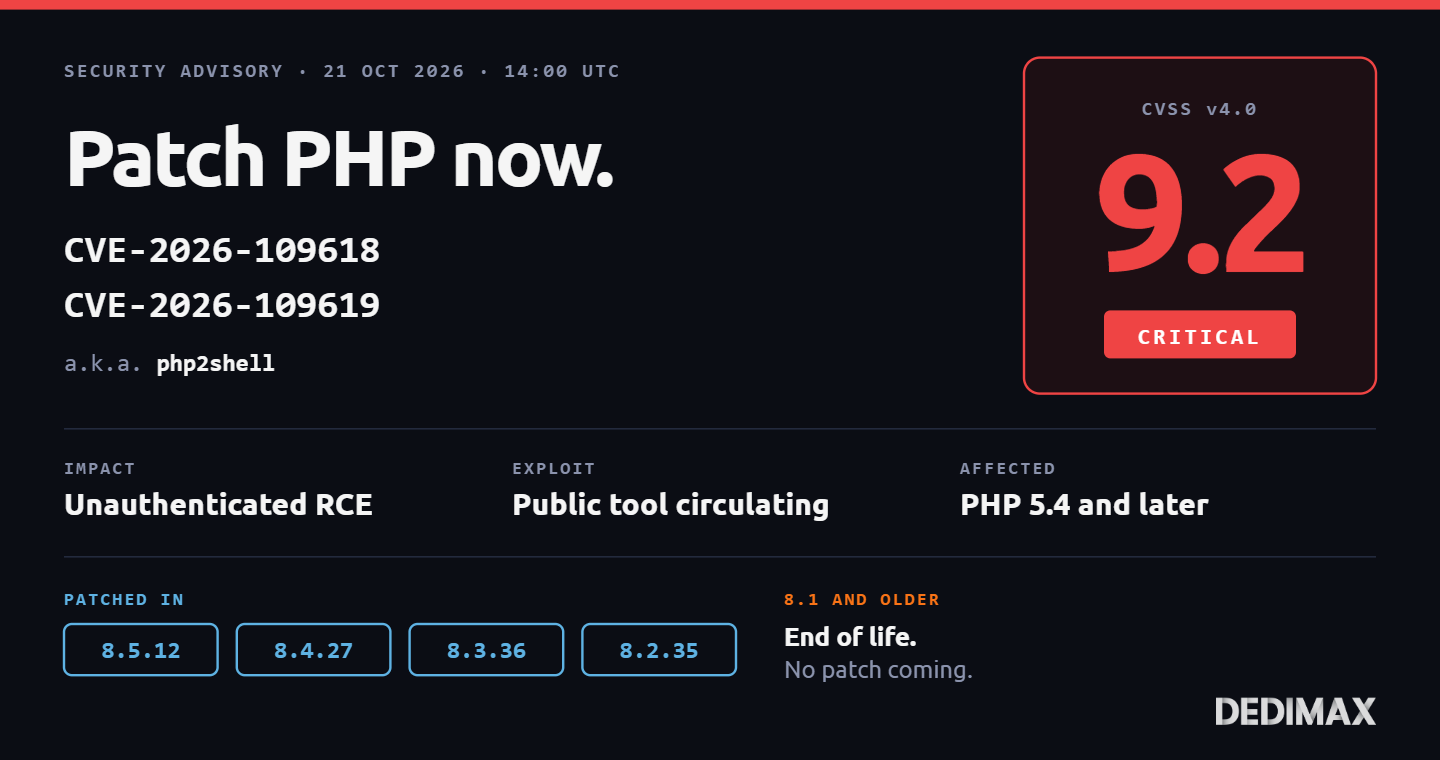
Two critical remote code execution vulnerabilities in PHP were patched today, October 21, 2026 at 14:00 UTC. T...

The call comes in at the worst time. Your server isn't responding. SSH hangs. The application is down. Monitoring is firing every three seconds. Your first instinct is to reboot it. Your second instinct is to reboot it harder.
Neither of those is the right move yet.
This guide is the runbook for what to do when a Linux server has become unreachable or unbootable. It walks through rescue mode: what it is, when to use it, how to find and mount your partitions once you're in, the chroot technique that unlocks every other repair, the five fixes that cover 90% of real cases, and when to stop repairing and migrate.
Everything here assumes a bare metal or VPS Linux server (Debian, Ubuntu, AlmaLinux, Rocky, CentOS Stream). The technique is the same across distributions, only the package manager commands change.
Rebooting into rescue is not free. You lose a running system (it was running something, even if poorly), you force a hard reboot of your production node, and you add 10 to 30 minutes of rescue setup time. Before you go there, run three checks.
1. Is SSH actually dead, or just slow?
High load averages, swap thrashing, and a flooded network can make SSH feel dead when it's actually crawling. Give the connection 60 seconds before you kill it. Try a different port if you've configured one. Try from a different source network (your home vs. a cloud bastion) in case the problem is routing, not the server.
If you can get in at all, even slowly, a running system is strictly easier to diagnose than a rescue session. You can top, kill the offender, drop caches, truncate a log file, and move on in five minutes. Rescue mode is twenty.
2. Does the console work?
Most server providers give you an out-of-band console in the dashboard: IPMI, KVM, or a serial console view. Before rebooting into rescue, open the console. You'll see one of three things:
Each state suggests a different first move. Skipping the console view is skipping the diagnosis.
3. Is this definitely your server, not the network?
Can you ping the public IP from a different source? Can the console in the dashboard reach the system? If the dashboard shows the server up, console works, but you can't SSH, the problem is probably the network path (firewall rule, carrier issue, your own IP got blocked by fail2ban) rather than the server itself. Rescue mode won't fix a network-path problem.
Only once these three checks confirm the server itself needs intervention do you reboot into rescue.
Rescue mode is a small Linux booted over PXE/iPXE from your provider's network instead of from your server's disks. Your production disks are still physically there, unmounted, with all their data intact. The rescue system gives you a shell, standard tools (mount, fsck, cryptsetup, lvm, mdadm, chroot, rsync), and network access to pull packages or transfer data.
Two consequences follow:
Your production credentials don't apply in rescue. The root password for the rescue environment is whatever your provider gives you (usually displayed in the dashboard or emailed when you trigger the boot). Your SSH keys from production are not loaded. You get in with the temporary credentials for this rescue session only.
SSH will warn about a changed host key. The rescue system has its own host key, different from your production one. Your SSH client will shout "WARNING: REMOTE HOST IDENTIFICATION HAS CHANGED!" and refuse to connect. This is expected. Edit ~/.ssh/known_hosts to remove the line for that IP, or connect with ssh -o StrictHostKeyChecking=no for this one session.
How you trigger a rescue boot depends on which Dedimax infrastructure your server runs on. The general flow is the same: find your server in the Dedimax dashboard, open its management page, trigger "boot in rescue mode", note the temporary root password shown, and wait two to five minutes for the server to come back up on the rescue image.
If your management page doesn't expose that option directly, open a support ticket asking for a rescue boot. The support team can trigger it manually on any infrastructure.
When the server is back up, SSH in as root with the temporary password. You're now in a fresh Linux environment with your production disks waiting to be mounted.
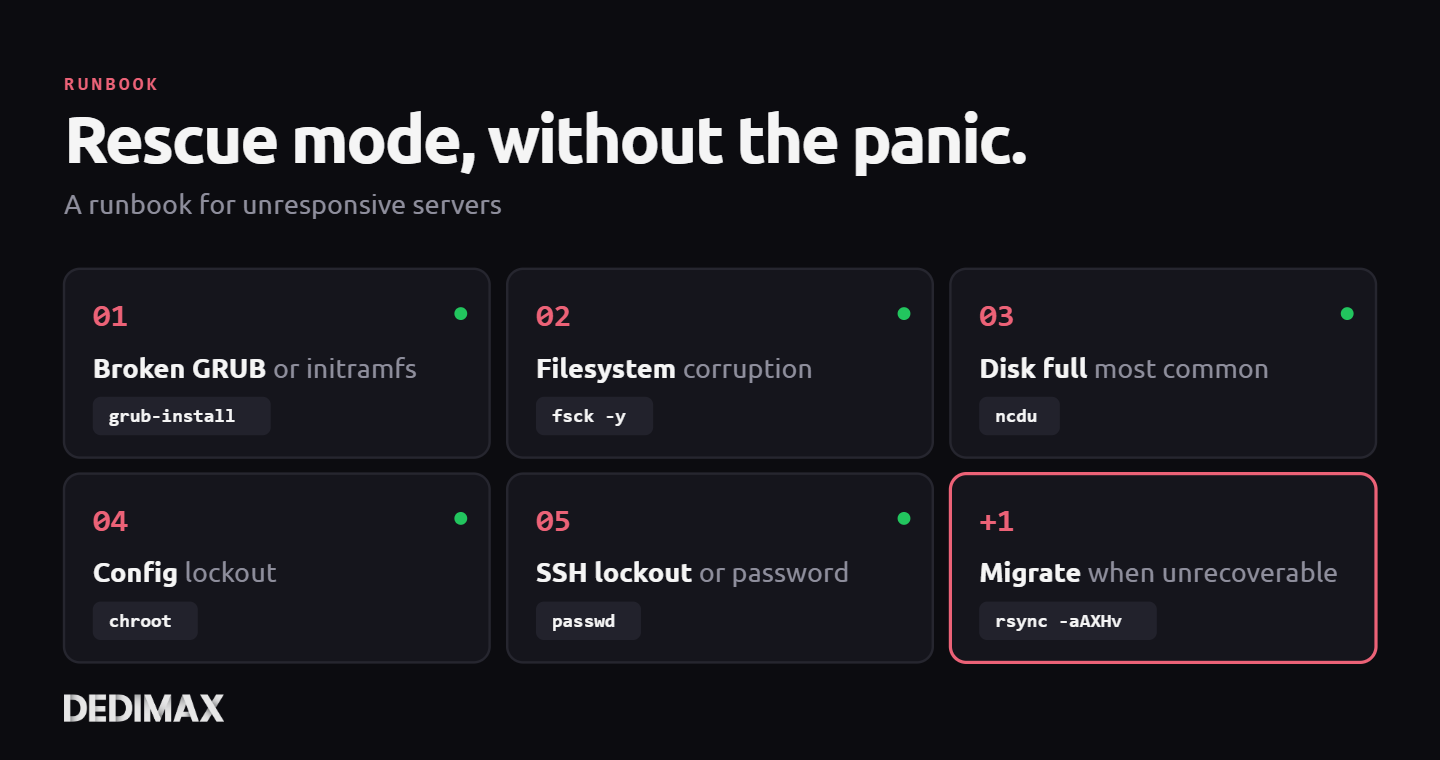
Rescue mode is a general-purpose tool. The fix you need depends entirely on what broke. Pick your symptom:
Before any of these, you need your production disks mounted and (for most fixes) a working chroot. That's the next two sections.
Once you're logged into the rescue system, the first move is figuring out what's on your disks. Modern Linux servers rarely have a simple /dev/sda1 single-partition layout. You may have LVM, LUKS, software RAID (mdadm), or ZFS.
Step 1: Identify the disks
lsblkShows every block device with its size, partition table, and existing mount points (none yet, since nothing from your production system is mounted). Look for devices with a size matching your server's disks.
Step 2: Identify the partition table and layout
fdisk -l /dev/sda
# or for NVMe:
fdisk -l /dev/nvme0n1
Shows partitions. On a typical server you'll see a boot partition (100M to 500M), maybe an EFI partition (if UEFI, 100M to 500M), and a root partition (the rest). Look at the type codes: Linux (83), Linux LVM (8e), Linux RAID (fd), Linux LUKS.
Step 3: Mount based on what you found
Four common scenarios.
Simple layout (plain ext4 or xfs on a single partition):
mkdir -p /mnt/system
mount /dev/sda2 /mnt/system
# Check: ls /mnt/system should show etc, var, home, etc.
LVM layout (most modern Debian/Ubuntu/RHEL installs):
pvscan                          # Find physical volumes
vgchange -ay                    # Activate all volume groups
lvs                             # List logical volumes
mount /dev/mapper/vg0-root /mnt/system
# Also mount /boot if it's a separate partition:
mount /dev/sda1 /mnt/system/boot
LUKS encrypted root:
cryptsetup luksOpen /dev/sda2 cryptroot
# Enter LUKS passphrase
# Then either mount directly:
mount /dev/mapper/cryptroot /mnt/system
# Or if LUKS wraps LVM (common): pvscan && vgchange -ay first
mdadm software RAID:
mdadm --assemble --scan
cat /proc/mdstat                # Verify array came up
mount /dev/md0 /mnt/system      # Or whatever array has root
ZFS:
zpool import                     # List importable pools
zpool import -R /mnt/system rpool
# Datasets with mountpoint=/ get mounted under /mnt/system
After mounting, verify by ls /mnt/system. You should see etc, var, home, usr, and so on. If you see an empty directory or random files, you mounted the wrong partition, unmount and try another.
Mounting the partition isn't enough for most repairs. To run commands as if you were booted into the real system (so apt, grub-install, passwd, systemctl all see the right paths, databases, and configuration), you need to chroot.
# Bind-mount the kernel interfaces into the chroot:
mount --bind /dev /mnt/system/dev
mount --bind /dev/pts /mnt/system/dev/pts
mount --bind /proc /mnt/system/proc
mount --bind /sys /mnt/system/sys
# For UEFI systems:
mount --bind /sys/firmware/efi/efivars /mnt/system/sys/firmware/efi/efivars

# Enter the chroot:
chroot /mnt/system /bin/bash
Inside the chroot, run cat /etc/os-release to confirm you're seeing your production system's identity. From here:
passwd changes your real root passwordapt install or dnf install installs packages into your real systemgrub-install reinstalls your real bootloader/etc/fstab, /etc/ssh/sshd_config, /etc/netplan/*.yaml with a full view of the real systemThis is the technique that makes rescue mode powerful. Everything below uses it.
Symptom: server shows a GRUB rescue prompt, "error: file not found," or boots into an initramfs emergency shell.
Cause: usually a kernel update that didn't finish cleanly, a disk layout change (new disk added, moved to different port), or /boot filling up and preventing new kernels from installing.
Reinstall GRUB (inside chroot):
# For BIOS systems:
grub-install /dev/sda
update-grub

# For UEFI systems (replace sda with your EFI disk):
grub-install --target=x86_64-efi --efi-directory=/boot/efi /dev/sda
update-grub
Regenerate initramfs:
# Debian/Ubuntu:
update-initramfs -u -k all

# RHEL/AlmaLinux/Rocky:
dracut --force --regenerate-all
Check /boot isn't full:
df -h /boot
# If near 100%, list kernels and remove old ones:
dpkg --list | grep linux-image        # Debian/Ubuntu
dnf list installed kernel             # RHEL-family
# Remove old ones BEFORE regenerating initramfs
Exit chroot, unmount, reboot out of rescue, verify.
Symptom: kernel boots, then drops into an emergency shell citing filesystem errors, bad superblocks, or "unable to mount root."
Cause: unclean shutdown, hardware issue (bad sectors on an aging disk), kernel panic mid-write.
Critical rule: do NOT run fsck on a mounted filesystem. It will corrupt data. Make sure the target is unmounted first.
If you mounted it earlier for diagnosis, unmount and deactivate first:
umount /mnt/system
# For LVM:
vgchange -an

# Now fsck:
# ext4:
fsck.ext4 -y /dev/sda2
# xfs:
xfs_repair /dev/sda2
Before running fsck on critical data, image the disk first. If the server holds data you absolutely cannot lose and you don't have a recent backup, image the disk to another location before any destructive repair:
# Over SSH to another server:
dd if=/dev/sda2 bs=1M status=progress | ssh user@backup.example.com "dd of=/backups/server-image.img bs=1M"

# Or compressed:
dd if=/dev/sda2 bs=1M status=progress | gzip | ssh user@backup.example.com "cat > /backups/server-image.img.gz"
Only then run fsck. If fsck makes things worse, you can restore from the image.
Symptom: server boots, you can log in on console, but services won't start, logs show "no space left on device," or everything is weirdly slow and broken.
This is the single most common cause of "my server stopped responding." Before chasing kernel panics and filesystem corruption, check disk space.
From rescue (after mounting but not necessarily inside chroot):
df -h /mnt/system
# If one or more partitions are at 100%, you found it.

# Find the big consumers fast:
du -h --max-depth=1 /mnt/system | sort -h
# Then descend into the biggest:
du -h --max-depth=1 /mnt/system/var | sort -h
Or use ncdu if available in the rescue environment (apt install ncdu on Debian-based rescues):
ncdu /mnt/systemThe usual culprits:
/var/log/* grown to tens of gigabytes. Common on misconfigured applications spitting errors. Truncate the biggest files (don't delete, keep the inode so any writing process doesn't crash): truncate -s 0 /mnt/system/var/log/huge-file.logjournalctl --directory=/mnt/system/var/log/journal --vacuum-size=100Mapt clean (Debian/Ubuntu) or dnf clean all (RHEL-family)/var/lib/docker/overlay2 can grow huge. Inside chroot, docker system prune -a (only if you're sure nothing stopped is valuable)/tmp with stuck large filesfind /mnt/system -name 'core.*' -size +100M/var/spool/mail and /var/spool/postfix can fill upAfter freeing space, unmount, reboot out of rescue, and the system should come back up cleanly.
The follow-up: disk full didn't appear from nothing. The post-provisioning checklist covers logrotate and journal size limits that prevent this from ever happening again. Setting them up after the incident is the prevention for next time.
If the disk filled suddenly from unexplained logs or a runaway process, it's worth checking whether this is a compromise rather than a configuration issue. The 5 signs no one has done the security watch covers how to tell.
Symptom: server boots, console login works, but a specific service is broken (SSH won't accept connections, no network, system hangs on boot waiting for a mount that doesn't exist).
These are config-file problems, fixable by editing the file in the chroot.
Broken /etc/fstab (server hangs for 90 seconds, then drops to emergency mode):
# Inside chroot:
cat /etc/fstab
# Look for lines referencing devices that don't exist or UUIDs that don't match blkid output.
# Comment out the offending line (add # at start) OR add nofail,x-systemd.device-timeout=10 to its options.
A classic example: someone added a second disk, mounted it, added it to fstab with a hard requirement. Disk died, server won't boot. Fix is to add nofail to the options so the system boots without it.
Broken networking:
# Debian/Ubuntu with netplan:
cat /etc/netplan/*.yaml
# Fix syntax errors (netplan is YAML, indentation matters).

# Ubuntu/Debian older style:
cat /etc/network/interfaces

# RHEL-family:
cat /etc/sysconfig/network-scripts/ifcfg-*
# Or NetworkManager configs: /etc/NetworkManager/system-connections/
Fix the config file, save, exit chroot, reboot out of rescue.
Broken sshd_config (locks you out):
# Inside chroot:
sshd -t -f /etc/ssh/sshd_config
# This validates the config without running the server. Shows the exact syntax error.
Common causes: typo in AllowUsers, PermitRootLogin set to something invalid, Port directive conflict. See the SSH hardening guide for the full recommended configuration.
Symptom: the server is up and running, but you can't SSH in. You either forgot the root password, or your user account got locked (too many failed attempts, fail2ban ban), or your SSH keys were overwritten.
Reasonable fixes from rescue:
Reset root password:
# Inside chroot:
passwd root
# Enter new password twice.
Unlock a locked account:
# Inside chroot:
passwd -u username                   # Unlock the account
chage -d 0 username                  # (Optional) force password change on next login
# Check fail2ban hadn't banned your own IP:
cat /etc/fail2ban/jail.local         # Review the whitelist
# Clear the fail2ban database if needed:
rm /var/lib/fail2ban/fail2ban.sqlite3  # Will be recreated at next start
Re-add SSH keys:
# Inside chroot:
mkdir -p /root/.ssh                  # Or /home/username/.ssh
chmod 700 /root/.ssh
# Edit /root/.ssh/authorized_keys and paste your public key:
nano /root/.ssh/authorized_keys
chmod 600 /root/.ssh/authorized_keys
Fix firewall rule that's blocking you:
# Inside chroot:
ufw status                           # Check current rules
# Or iptables:
iptables -L -n -v
# Nuclear option, start fresh (no rules at all until re-added):
ufw reset
After any of these, exit chroot and reboot out of rescue.
Not every system is worth saving. A root filesystem with widespread corruption, a disk showing SMART errors, a system of unknown trustworthiness after a suspected compromise, or a server that has accumulated years of untracked manual configuration drift and broken packages: sometimes the honest move is to provision a new server and migrate the data.
The rescue environment is where you do that migration. Your production disks are mounted at /mnt/system, nothing is writing to them, you have full network access.
Minimum set to save:
/etc (all config)/home (user data)/root (admin's files, SSH keys, scripts)/var/www (web content)/var/lib/mysql or /var/lib/postgresql (if databases; see note below)/var/mail and /var/spool/mail (if mail server)/opt (if you use it for third-party apps)/data, /srv, wherever your application livesDatabase note: copying /var/lib/mysql while files are untouched (which they are, in rescue) works, but is less clean than a dump. If you can start the DB in the chroot and dump it, prefer that. If not, copy the raw files and plan to repair or rebuild on the new server.
Migration over SSH to a new server:
# From rescue, with /mnt/system mounted and new server ready:
rsync -aAXHv --info=progress2 /mnt/system/etc/ user@newserver:/etc-restored/
rsync -aAXHv --info=progress2 /mnt/system/home/ user@newserver:/home/
rsync -aAXHv --info=progress2 /mnt/system/var/www/ user@newserver:/var/www/
# Repeat for each path. The flags matter:
#   -a: archive mode (preserve permissions, timestamps, symlinks)
#   -A: preserve ACLs
#   -X: preserve extended attributes
#   -H: preserve hard links
Don't blindly rsync /mnt/system/ to the new server's /. It will clobber the new server's own /etc, /var, and potentially its boot. Copy to a staging path and merge intentionally.
If the network to the new server is slow, use wondershaper on the source to cap the rsync bandwidth so it doesn't saturate the link for other traffic. Or run the rsync overnight.
Had a backup? If the backup strategy was in place and recent, the easier path is provisioning a new server and restoring from the backup. The rescue session becomes a chance to confirm the backup matches what's on disk, not a primary recovery channel.
Once your fix is done and the system is ready to come back up:
# Exit chroot:
exit

# Unmount everything in reverse order:
umount /mnt/system/sys/firmware/efi/efivars 2>/dev/null
umount /mnt/system/sys
umount /mnt/system/proc
umount /mnt/system/dev/pts
umount /mnt/system/dev
umount /mnt/system/boot 2>/dev/null
umount /mnt/system

# For LVM:
vgchange -an

# For LUKS:
cryptsetup luksClose cryptroot

# Then: in the Dedimax dashboard, switch boot mode from rescue back to normal (hard disk), and reboot.
The step everyone forgets: if you reboot the server without switching the dashboard back from rescue to normal boot, it just boots into rescue again. Switch it back explicitly.
Rescue mode is an emergency tool. It works, but it costs you an hour of production downtime and a stress spike. The real question after every rescue incident is what would have prevented needing it:
On any Dedimax VPS or dedicated server, rescue mode is available on demand from the dashboard, or from support if your management page doesn't expose it. It's a safety net, but it's not a substitute for the three preventions above. Build them first, keep this runbook bookmarked, and most rescue sessions become rare rather than regular.
Deploy your own VPS
300+ apps in one click, full root access, ready in minutes.
From 9,99€/mes
Two critical remote code execution vulnerabilities in PHP were patched today, October 21, 2026 at 14:00 UTC. T...
Clicking through a panel to provision a VPS, trigger a reboot, or change a reverse DNS record is fine when you...
Almost every guide on this blog eventually says "put a reverse proxy in front of it." Vaultwarden needs one. S...
Toma el control de tu servidor dedicado (configuraciones, datos...) sin límites en el uso de aplicaciones.
Que estas esperando ?
Te esperamos en nuestro blog. Guías y tutoriales publicados regularmente (sysadmin, gaming, devops...) !
Permítame verificar