

Your photos are probably sitting in someone else's cloud right now. Every picture of your kids, every vacation, every moment, stored on servers you don't control, scanned by algorithms you didn't agree to, and subject to pricing changes you can't predict.
Immich is the way out. It's a self-hosted photo and video management platform that runs on your own server. Face recognition, mobile auto-backup, smart search, shared albums, map view, all the features you expect from a modern photo service, on hardware you own.
This guide walks through deploying Immich on a Linux server using Docker Compose. You'll have a working photo server in under 30 minutes.
docker compose plugin (not the deprecated docker-compose)A VPS with 4 cores and 8 GB RAM handles a family library of 50,000+ photos comfortably. For larger collections or snappier face recognition, a dedicated server with more RAM and NVMe storage makes a real difference.
If Docker isn't already on the box, set it up from the official repository. Don't use the docker.io package from Ubuntu's default repos. It's outdated and missing the Compose plugin.
bash
# Remove old versions
sudo apt remove docker docker-engine docker.io containerd runc 2>/dev/null

# Add Docker's official GPG key and repository
sudo apt update
sudo apt install -y ca-certificates curl gnupg
sudo install -m 0755 -d /etc/apt/keyrings
curl -fsSL https://download.docker.com/linux/ubuntu/gpg | sudo gpg --dearmor -o /etc/apt/keyrings/docker.gpg
sudo chmod a+r /etc/apt/keyrings/docker.gpg

echo "deb [arch=$(dpkg --print-architecture) signed-by=/etc/apt/keyrings/docker.gpg] https://download.docker.com/linux/ubuntu $(. /etc/os-release && echo "$VERSION_CODENAME") stable" | sudo tee /etc/apt/sources.list.d/docker.list > /dev/null

# Install Docker Engine + Compose plugin
sudo apt update
sudo apt install -y docker-ce docker-ce-cli containerd.io docker-buildx-plugin docker-compose-plugin

# Add your user to the docker group
sudo usermod -aG docker $USER
Log out and back in for the group change to take effect. Verify with:
bash
docker compose versionCreate a directory for Immich and pull the official Docker Compose and environment files:
bash
mkdir -p /opt/immich && cd /opt/immich

wget -O docker-compose.yml https://github.com/immich-app/immich/releases/latest/download/docker-compose.yml
wget -O .env https://github.com/immich-app/immich/releases/latest/download/example.envEdit .env to set your storage paths and a secure database password:
bash
nano .envThe key variables to change:
bash
UPLOAD_LOCATION=/mnt/data/immich/library
DB_DATA_LOCATION=/opt/immich/postgres
IMMICH_VERSION=v2
DB_PASSWORD=your_secure_password_here
Generate a strong password with:
bash
openssl rand -base64 32Two important rules for storage paths:
UPLOAD_LOCATION can be on any filesystem. This is where your photos live, so point it at your largest drive.DB_DATA_LOCATION should be on an SSD. Database performance directly affects how fast the UI feels.bash
cd /opt/immich
docker compose up -d
Watch the logs to make sure everything starts cleanly:
bash
docker compose logs -f immich-serverYou're looking for the server to report that it's listening on port 2283. The machine learning container takes a minute or two on first start to download its models. That's normal.
Verify all containers are running:
bash
docker compose psOpen your browser and go to http://your-server-ip:2283. Click "Getting Started" and create the first account. This is the admin user.
Install the Immich app on your phone (iOS App Store or Android Google Play/F-Droid). Then:
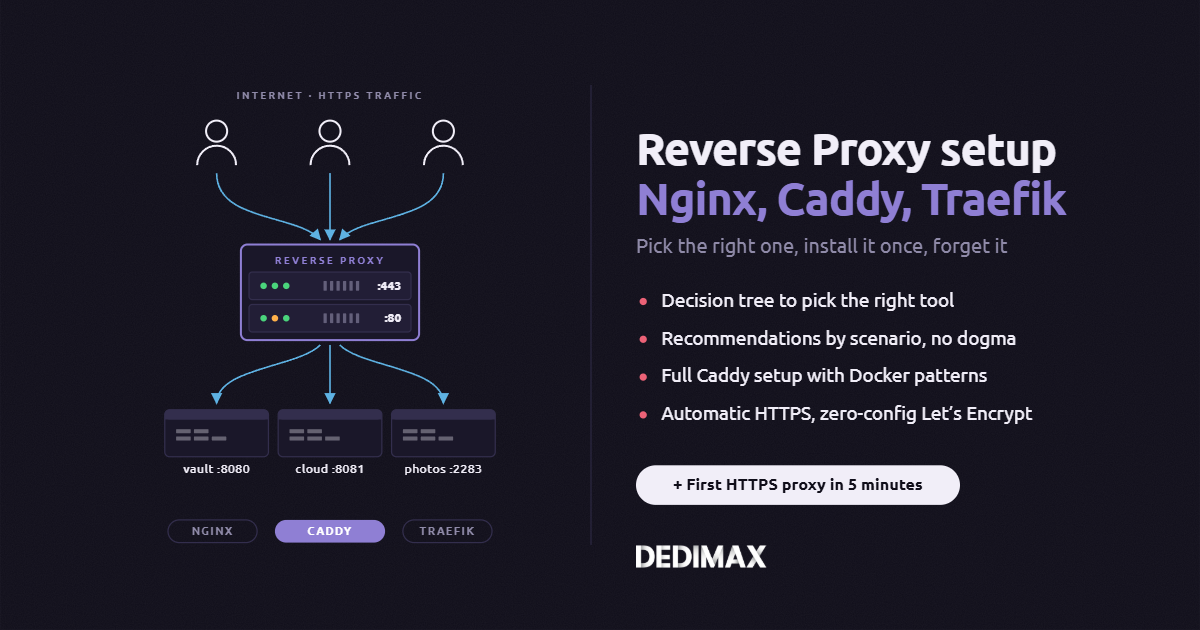
For remote access, you'll want HTTPS. Basic Nginx reverse proxy with Let's Encrypt:
bash
sudo apt install -y nginx certbot python3-certbot-nginxCreate a config file at /etc/nginx/sites-available/immich:
nginx
server {
    listen 80;
    server_name photos.yourdomain.com;
    client_max_body_size 50000M;
    location / {
        proxy_pass http://127.0.0.1:2283;
        proxy_set_header Host $host;
        proxy_set_header X-Real-IP $remote_addr;
        proxy_set_header X-Forwarded-For $proxy_add_x_forwarded_for;
        proxy_set_header X-Forwarded-Proto $scheme;
        proxy_http_version 1.1;
        proxy_set_header Upgrade $http_upgrade;
        proxy_set_header Connection "upgrade";
    }
}
Enable and get SSL:
bash
sudo ln -s /etc/nginx/sites-available/immich /etc/nginx/sites-enabled/
sudo nginx -t
sudo systemctl reload nginx
sudo certbot --nginx -d photos.yourdomain.com
The client_max_body_size 50000M is important. Without it, Nginx rejects large video uploads.
Immich can index existing photos without copying them. Add a volume mount to docker-compose.yml:
yaml
services:
  immich-server:
    volumes:
      - ${UPLOAD_LOCATION}:/data
      - /path/to/existing/photos:/mnt/photos:ro
The :ro flag makes the mount read-only. Useful if you want Immich to index your library without any risk of modifying the original files.
Then go to Administration → External Libraries → Create External Library and set the import path to /mnt/photos.
bash
cd /opt/immich
docker compose pull
docker compose up -d
docker image prune -f
Your photos, database, and settings stay in the configured volumes.
Add a nightly database backup to your crontab:
bash
0 3 * * * cd /opt/immich && docker compose exec -T immich_postgres pg_dumpall -U postgres | gzip > /mnt/backups/immich-db-$(date +\%Y\%m\%d).sql.gzThis dumps the entire database every night at 3 AM and saves it as a compressed file. Don't forget to also back up your UPLOAD_LOCATION directory. The database alone won't recover anything if the photos are gone.
ML container keeps restarting: usually RAM. Either bump your server's memory or switch to smaller ML models in the admin settings.
Uploads are slow: check your Nginx client_max_body_size value first. If that's fine, the bottleneck is almost always the database. It must be on an SSD.
Face recognition not working: it runs in the background and can take hours on large libraries. Check Administration → Jobs to see the progress.
Can't reach the mobile app from outside: confirm your reverse proxy is forwarding WebSocket upgrades correctly. The Upgrade and Connection headers in the Nginx config are not optional.
Take control of your dedicated server (settings, data ...) without any limits in apps usage.
What are you waiting for ?
We’re waiting for you on our blog. New guides and tutorials published regularly (sysadmin, gaming, devops...) !
Let me check