tutorial
Automate Your Infrastructure with the Dedimax API: 5 Real-World Use Cases
Clicking through a panel to provision a VPS, trigger a reboot, or change a reverse DNS record is fine when you...

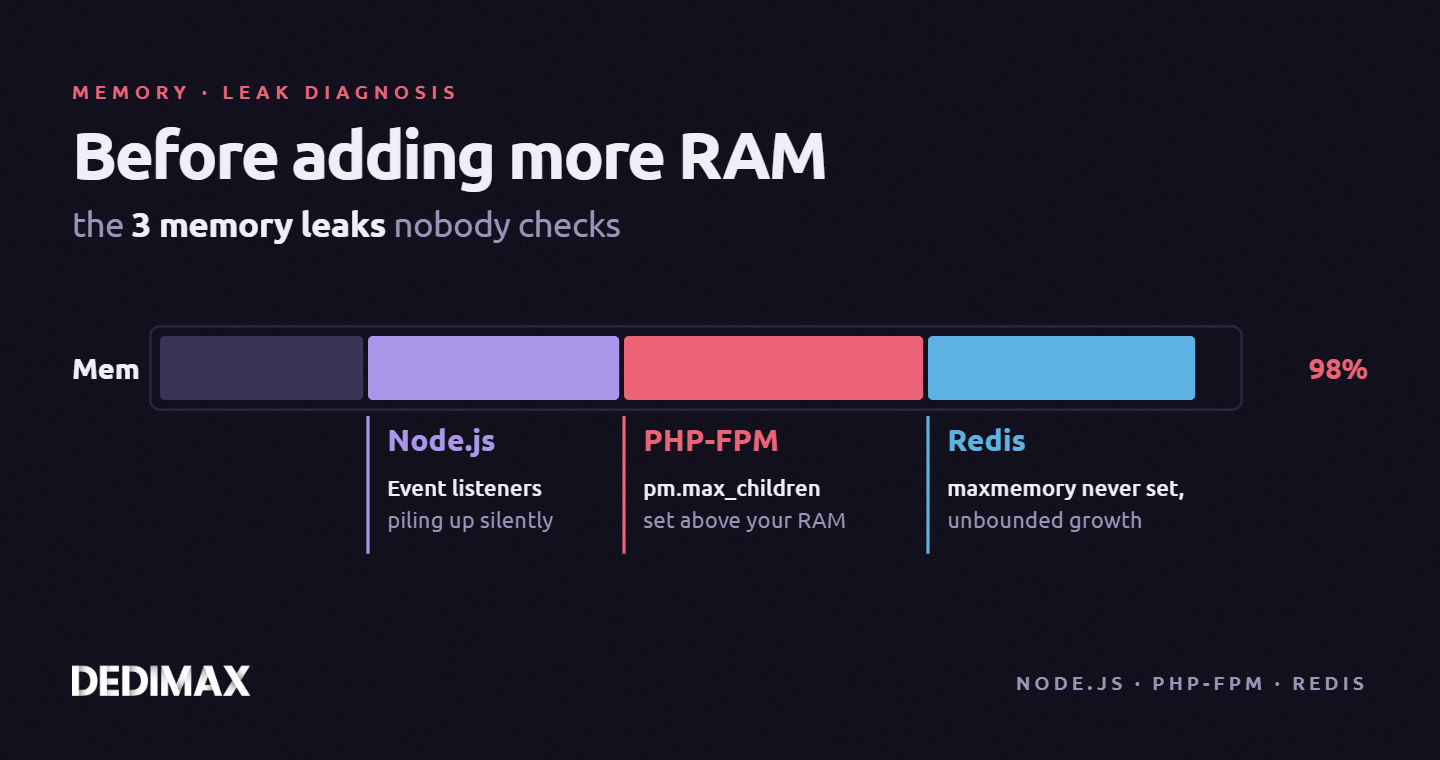
Your server's RAM usage climbs. Monitoring alerts fire. The temptation is to upgrade: more RAM, bigger instance, done. Before you do, open a terminal and check three specific things first. In the majority of "we need more RAM" situations we see in production, the machine isn't actually undersized. It's hosting one of three common memory leaks that nobody checks because they're invisible until you look.
Each of these three patterns adds up to real memory over hours, days, or weeks. They don't crash the server loudly. They quietly consume everything available until the kernel starts swapping or killing processes, at which point someone decides "we need to upgrade." The upgrade works for a few more weeks, then the pattern repeats. The real fix is a config change that takes 15 minutes and costs nothing.
This article walks through the 3 memory leaks that account for most of the "we need more RAM" tickets we see on production web servers. Node.js event listeners accumulating silently, PHP-FPM processes gobbling memory because of a misconfigured worker count, and Redis instances growing unbounded because nobody set a memory limit. For each, you'll find how to identify the pattern, what the impact actually is, how to fix it, and how to verify the fix worked.
Node.js emits a warning when an event emitter has more than 10 listeners attached: MaxListenersExceededWarning: Possible EventEmitter memory leak detected. This warning exists specifically because listener accumulation is one of the most common memory leak patterns in Node applications. Code attaches listeners inside request handlers, timers, or long-lived connections, and forgets to remove them. Each listener holds references to closures, which hold references to objects, which hold references to buffers. The chain grows, and nothing gets garbage collected.
The pattern is especially common in long-running processes: WebSocket servers, worker queues, cron-style background jobs, anything that stays up for days. A short-lived API server might run for a week between restarts and show no symptoms. A WebSocket server running for a month will quietly accumulate megabytes of unreleased memory per connection cycle.
A Node process that should idle at 150MB sits at 1.2GB after a week of production traffic. Response times degrade subtly as the garbage collector works harder. If the process stays up long enough, V8 eventually hits its heap limit (default 1.5GB on 64-bit systems before Node 20, 4GB on recent versions) and crashes with JavaScript heap out of memory. Your orchestrator restarts it, the clock resets, the pattern repeats.
Three concrete actions in order of priority.
First, enable listener leak detection in production. Set a sensible max listeners threshold and let Node tell you when something is wrong:
process.on('warning', (warning) => {
  if (warning.name === 'MaxListenersExceededWarning') {
    console.error('[MEMORY LEAK WARNING]', warning.message, warning.stack);
  }
});
Second, audit your long-lived event emitters. For every .on() call in your codebase, verify there's a matching .removeListener() or .off() call in the cleanup path. The common offenders: WebSocket connection handlers, Redis pub/sub subscribers, filesystem watchers, HTTP keep-alive agents.
Third, use the Node inspector heap snapshot feature in a staging environment that mimics production traffic patterns. Run the process for an hour or two, capture a heap snapshot, run for another hour, capture another snapshot. Compare them. Objects accumulating between snapshots that shouldn't be are your leak sources.
node --inspect your-app.jsThen connect Chrome DevTools or clinic.js to the inspector port and capture snapshots via the Memory tab.
After deploying the fix, let the process run for its typical uptime (24h, 7 days, whatever your deployment cadence is). Monitor the RSS memory in your observability stack. The curve should flatten rather than climb linearly. If RSS still grows linearly over 24 hours, you have another leak source to find.
PHP-FPM spawns worker processes to handle incoming requests. By default, many distro packages ship with pm = dynamic and pm.max_children = 50. On a server with 2GB RAM running a typical PHP application, this is often wrong by an order of magnitude. Each PHP worker consumes between 30MB and 200MB of RAM depending on the application. Fifty workers at 100MB each is 5GB of RAM, which your 2GB server does not have.
The confusing part: this doesn't crash immediately. PHP-FPM lazily spawns workers as traffic arrives. If your traffic is modest, you might run with 5-8 active workers for weeks and never hit the ceiling. Then traffic spikes, PHP-FPM spawns more workers up to max_children, the server swaps hard, response times go from 100ms to 15 seconds, and someone opens a "we need more RAM" ticket. In reality, the server was never sized for 50 PHP workers, you just hadn't hit the limit yet.
Response time collapses under load. If swap is enabled, the server grinds (iowait climbs to 50%+ while CPU appears idle). If swap is disabled, the OOM killer starts killing processes, often picking the database or PHP-FPM itself. Either way, the "symptom" (slow responses, services dying) looks like a capacity problem but is actually a configuration problem.
Calculate the right max_children for your actual server using the standard formula:
max_children = (available_RAM - memory_for_other_services) / average_worker_sizeStep 1: measure average PHP-FPM worker size on your server. Run during normal traffic:
ps -ylC php-fpm --sort:rss | awk '{sum += $8; count++} END {print "Average RSS:", sum/count/1024, "MB"}'Step 2: calculate available RAM for PHP workers. On a 2GB server running PHP-FPM + Nginx + MariaDB, a reasonable split: 1GB for MariaDB + buffers, 100MB for Nginx + system, leaving roughly 900MB for PHP workers.
Step 3: compute the max. If your average worker is 90MB and you have 900MB available: 900 / 90 = 10 workers maximum.
Step 4: edit your pool configuration at /etc/php/*/fpm/pool.d/www.conf:
pm = dynamic
pm.max_children = 10
pm.start_servers = 3
pm.min_spare_servers = 2
pm.max_spare_servers = 5
pm.max_requests = 500
The pm.max_requests = 500 directive is important and often missing: it recycles each worker after 500 requests, which cleans up any per-request memory accumulation from your application code or opcache misconfiguration.
Reload PHP-FPM:
systemctl reload php*-fpmUnder production load, PHP-FPM should never spawn more workers than your calculated max_children. Check active workers during peak traffic:
ps aux | grep "php-fpm: pool" | wc -lThe number should stay at or below your configured max. If you hit the limit frequently, you have genuine capacity pressure and need either more RAM or faster code. If you never approach the limit, the previous config was over-provisioning memory on a hypothesis.
Redis by default has maxmemory set to 0, which means unlimited. If your application uses Redis for anything that grows over time (session storage, caching, pub/sub, work queues), the dataset grows until Redis consumes all available server memory, at which point one of two things happens: the kernel OOM-kills Redis (and your application loses its session store or cache), or the system starts swapping (and Redis's performance collapses because Redis assumes its data is always in RAM).
The pattern is insidious because Redis workloads often look fine for months. A cache with a 24-hour TTL and modest traffic sits at a stable size. Then the application adds a new feature that caches larger objects, or TTLs get set too long, or a bulk operation populates the cache with 100,000 new keys. Memory climbs, climbs some more, and three months later your server is swapping.
The subtle version: Redis response times degrade from microseconds to milliseconds as the kernel pages memory in and out. Your entire application slows down because every cache read now hits swap. The acute version: Redis gets OOM-killed, your application loses its cache, you get a flood of cache-miss traffic hitting your database, and your site goes down for 30 seconds while things recover.
Set maxmemory to a conservative value and pick an eviction policy appropriate to your workload. Edit /etc/redis/redis.conf:
maxmemory 512mb
maxmemory-policy allkeys-lru
Rules of thumb for the value:
Rules of thumb for the policy:
allkeys-lru for pure caches (evicts least recently used keys)volatile-lru if you have both cached keys with TTLs and persistent keys withoutnoeviction only if you'd rather Redis return errors than lose any data (and you have monitoring to catch this)Reload Redis to apply:
redis-cli CONFIG SET maxmemory 512mb
redis-cli CONFIG SET maxmemory-policy allkeys-lru
redis-cli CONFIG REWRITE
The CONFIG REWRITE command persists the live config change to disk so it survives restarts.
Check that the limits are now in place:
redis-cli INFO memory | grep -E "maxmemory|used_memory_human"You should see your configured maxmemory value and used_memory_human well below it. Over the following days, monitor evicted_keys:
redis-cli INFO stats | grep evicted_keysIf evicted_keys grows steadily, Redis is actively discarding data to stay under the limit, which is working as intended for a cache. If evicted_keys grows faster than your traffic suggests it should, your cache is probably undersized and genuinely needs more memory, which is now a conscious decision rather than a silent crisis.
All three leaks share the same shape: a sensible default for small workloads that becomes dangerous for medium ones, with no loud failure mode until the problem is already severe. Linux and the tools above it tend to assume that if you want a limit, you'll configure one. If you don't, they'll gladly use everything available until something breaks.
The fix in all three cases takes 15 to 30 minutes of config work. The upgrade "fix" takes a server migration, downtime, and recurring cost. For teams that haven't checked these three things on their current server, there's a decent chance that the next RAM upgrade quietly delays the inevitable without fixing it.
Before upgrading any server for RAM pressure, run through this list. Measure Node process RSS over time. Count active PHP-FPM workers under load. Check Redis maxmemory and evicted_keys. If all three are correctly bounded and you're still hitting pressure, you have a genuine capacity need and the upgrade makes sense. If any of them is misconfigured, you've just saved yourself an upgrade and bought yourself time to think about what you actually need.
The same discipline we covered in our post-provisioning checklist applies here: resource limits are a decision, not a default. On any VPS or dedicated server you administer, running this check quarterly catches drift before it costs you an unnecessary upgrade.
Deploy your own VPS
300+ apps in one click, full root access, ready in minutes.
From €9.99/mo
Clicking through a panel to provision a VPS, trigger a reboot, or change a reverse DNS record is fine when you...
If you've ever provisioned a fresh VPS and spent the next two hours installing Docker, pulling images, writing...
Most sysadmins don't have a real security watch. Not because they don't care about security, but because "stay...
Take control of your dedicated server (settings, data ...) without any limits in apps usage.
What are you waiting for ?
We’re waiting for you on our blog. New guides and tutorials published regularly (sysadmin, gaming, devops...) !
Let me check