
You don't need to be a Linux expert to run a VPS. But there's a handful of commands that come up so often that not knowing them costs you real time. These are the ones I use almost daily, and they've gotten me out of trouble more times than I can count.
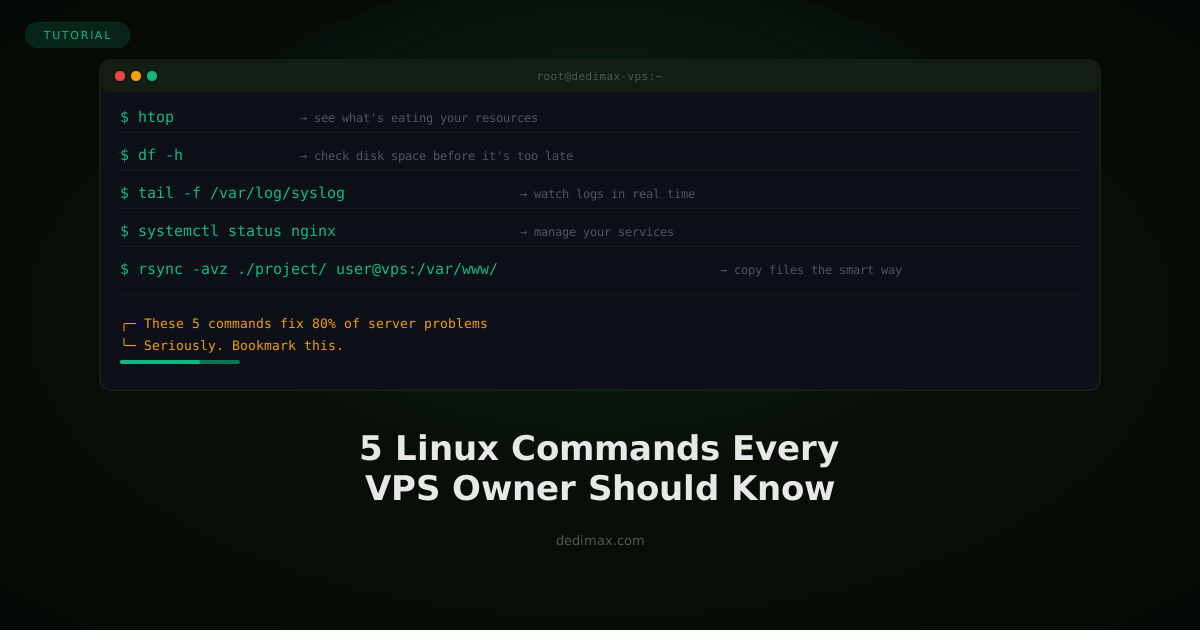
The built-in top command works, but htop is better in every way. Color-coded, interactive, and actually readable.
sudo apt install htop -y
htop
What to look for: if your memory bar is maxed out and you see a process using 80%+ of RAM, that's your problem. If CPU is pegged at 100% across all cores, something is either misconfigured or under attack.
I keep htop as my first instinct whenever a client says "my server feels slow". Nine times out of ten, it points you to the issue within seconds.
df -h
The -h flag makes the output human-readable (GB instead of blocks). A full disk is one of the most common reasons servers start behaving weirdly — databases crash, logs stop writing, deployments fail with cryptic errors.
Keep an eye on the root partition (/). Once it hits 90%, start cleaning up. Old logs are usually the culprit:
sudo du -sh /var/log/*
sudo journalctl --vacuum-time=7d
That second command trims systemd journal logs to the last 7 days. You'd be surprised how many gigabytes those pile up.
tail -f /var/log/syslog
This streams the last lines of a file as they're written. It's invaluable for debugging. You can watch Nginx access logs, application errors, or auth attempts as they happen:
# Watch Nginx errors
tail -f /var/log/nginx/error.log

# Watch SSH login attempts
tail -f /var/log/auth.log

# Watch multiple files at once
tail -f /var/log/nginx/*.log
Combine with grep to filter for specific terms:
tail -f /var/log/nginx/access.log | grep 404
Now you're seeing every 404 error as it happens. Pretty handy when you're trying to find broken links after a migration.
Almost everything running on your server — Nginx, MySQL, PHP-FPM, Ghost, your app — is managed by systemd. The systemctl command is how you talk to it.
# Check if Nginx is running
systemctl status nginx

# Restart Nginx after a config change
sudo systemctl restart nginx

# Reload config without dropping connections
sudo systemctl reload nginx

# Start a service at boot
sudo systemctl enable nginx

# Stop a service from starting at boot
sudo systemctl disable nginx
The status output tells you everything: is it running, when did it start, and the last few log lines. When something breaks after a config change, systemctl status is faster than digging through log files.
Forget scp for anything beyond a single file. rsync only transfers what's changed, shows progress, and can resume interrupted transfers.
# Copy a local directory to your VPS
rsync -avz ./my-project/ user@your-vps-ip:/var/www/html/

# Backup your VPS to your local machine
rsync -avz user@your-vps-ip:/var/www/html/ ./backup/

# Sync and delete files that no longer exist at source
rsync -avz --delete ./my-project/ user@your-vps-ip:/var/www/html/
The --delete flag is powerful but dangerous — it removes files on the destination that don't exist on the source. Use it for deployments, not backups.
I use rsync for everything: deploying code, moving sites between servers, creating backups. Once you get used to it, you wonder how you lived without it.
When something isn't working and you don't know why, this sequence almost always gets you to the answer:
systemctl status your-service
journalctl -u your-service --since "5 minutes ago"
tail -f /var/log/your-app/error.log
Check the service status, read recent logs, watch for new errors. Three commands, and you're debugging like someone who's been doing this for years.
Running your first VPS? Dedimax offers VPS and Cloud plans starting at $3.90/month with root access, so you can practice these commands on real hardware without breaking the bank.
Take control of your dedicated server (settings, data ...) without any limits in apps usage.
What are you waiting for ?
We’re waiting for you on our blog. New guides and tutorials published regularly (sysadmin, gaming, devops...) !
Let me check