
You just got the SSH credentials for a fresh server. VPS, dedicated, cloud instance, VM, doesn't matter. It boots, it has an IP, you can log in. The temptation is to start deploying immediately. Don't.
Between "server is up" and "server is ready for production traffic" sits a checklist that most guides fragment across a dozen articles. Some cover it in three points, some skip it entirely because "it's obvious." The result: production servers running with default configurations that would embarrass any competent admin, discovered six months later when something breaks or someone gets breached.
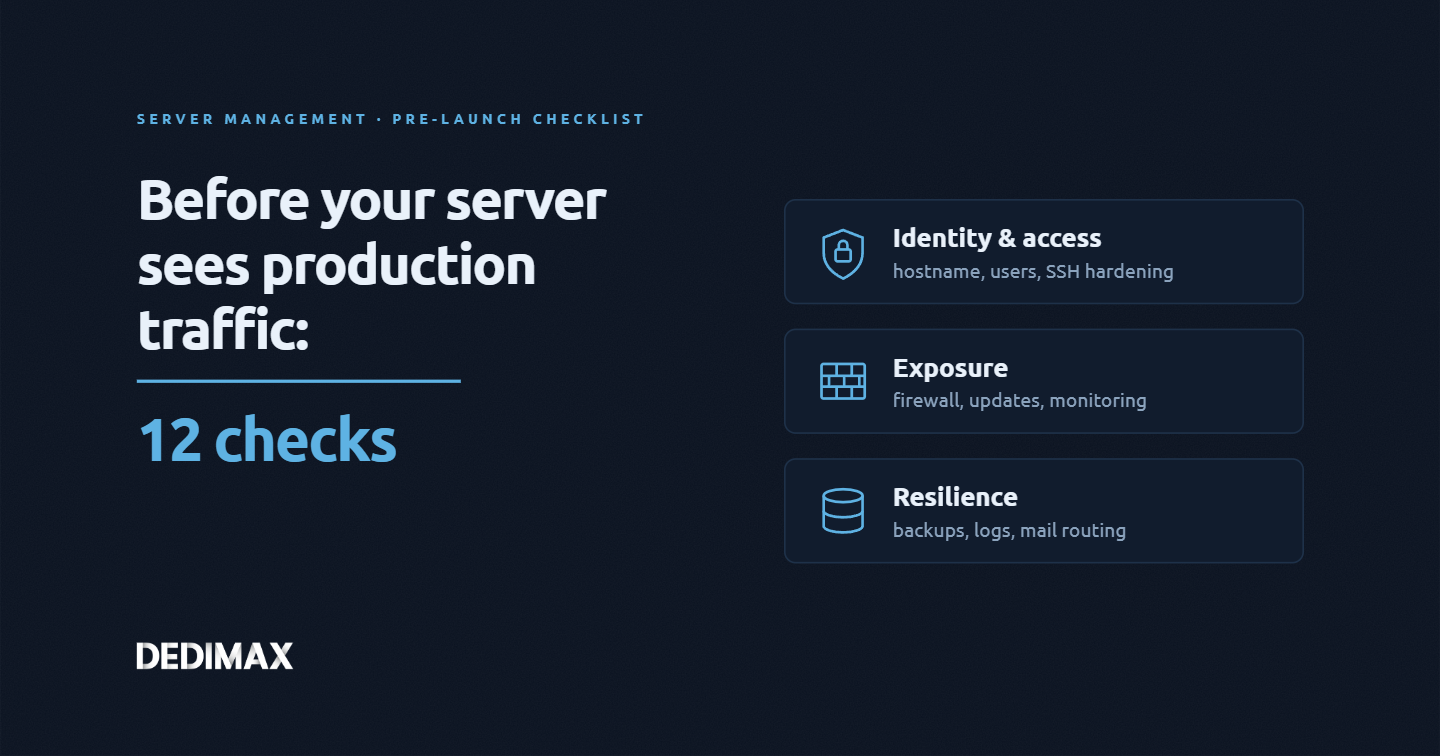
This article consolidates the 12 things every server needs before it sees production traffic, in the order you should do them. Not every check applies to every server (a container has different concerns than a bare-metal box), but the list itself is the reference. Use it once for every server you provision, mark items N/A when they truly don't apply, and you'll eliminate the vast majority of "we forgot to configure X" incidents that plague small-to-medium infrastructure.
The checks apply generically to any Linux server: bare-metal, dedicated, VPS, VM, cloud instance. Some containers skip several checks (they don't own the kernel or system-level config), but the majority still apply once you're inside the container.
Two prerequisites, both universal.
Have out-of-band access verified before you touch anything. Console access via KVM, IPMI, cloud provider console, or physical access. If you lock yourself out with the wrong firewall rule or SSH config, this is your escape hatch. Test it before you need it.
Take a snapshot or full backup before making changes, if the platform supports it. Cloud instances have image snapshots, VMs have snapshots, bare-metal usually doesn't. If you can, do it. Rolling back a botched hardening session in 30 seconds is worth the disk space.
Now, the 12 checks.
Default hostnames like ip-10-0-0-42 or vps-abcd1234 are functional but useless when logs from multiple servers hit your monitoring stack. Set a meaningful hostname immediately.
hostnamectl set-hostname mail-prod-01.yourdomain.comUpdate /etc/hosts so the hostname resolves locally, otherwise sudo complains and some services fail to start:
127.0.0.1 localhost
127.0.1.1 mail-prod-01.yourdomain.com mail-prod-01
If this server will be publicly reachable, publish the corresponding A record (and AAAA for IPv6) in your DNS. Verify with dig.
Nothing works right on a server with drifted time. Log timestamps become useless. TLS certificates fail validation. Kerberos breaks. SSH clock-skew authentication fails. Cron runs at the wrong times.
Modern Linux distributions ship with systemd-timesyncd or chrony enabled by default, but "enabled" doesn't always mean "working." Verify:
timedatectl statusLook for System clock synchronized: yes and NTP service: active. If not, install and enable chrony (or the equivalent) explicitly. Check the offset:
chronyc trackingThe offset should be under a second. Anything larger and you have an NTP problem to fix before proceeding.
Related to clock sync but distinct. The system clock should always run in UTC (never change this), but the displayed timezone affects your logs' readability and cron scheduling.
timedatectl set-timezone Europe/ParisPick whatever fits your operations team. UTC is a valid choice if your team is distributed across timezones. Consistency across your fleet matters more than the specific choice.
The image you provisioned from is not up to date, no matter how recent it is. Run a full update first:
# Debian/Ubuntu family
apt update && apt full-upgrade -y

# Red Hat family
dnf update -y

# Arch family
pacman -Syu
Reboot if the kernel updated. Then configure automatic security updates so critical patches land without waiting for your next maintenance window. On Debian/Ubuntu, the unattended-upgrades package handles this. On Red Hat, dnf-automatic. Configure to install security updates automatically, notify you via email for everything else.
The line between "auto-updates break things" and "manual updates never happen" is a real concern. The pragmatic compromise: auto-install security updates, notify (don't install) other updates. Adjust based on your appetite for risk.
Never operate as root over SSH. Create a dedicated user for administration, give them sudo rights, and disable root SSH login. This gives you an audit trail (every sudo command is logged with the user's identity), limits blast radius on credential compromise, and forces the two-factor pattern of "know user password + control SSH key."
Create the user:
useradd -m -s /bin/bash yourname
passwd yourname
usermod -aG sudo yourname   # or -aG wheel on Red Hat family
Copy your public SSH key to the new user's ~/.ssh/authorized_keys, test that SSH login works, then disable root SSH login. We covered the full migration path in why you should stop logging into root via SSH.
Once you have a working unprivileged user, harden sshd_config. The essentials: disable password authentication, disable root login, restrict to specific users, modern crypto only. Full walkthrough of the 10 settings that actually matter in our SSH hardening guide.
The key sequence: edit sshd_config, validate with sshd -t before reloading, keep a second SSH session open when testing changes, verify a fresh connection works before closing the first one. Never edit sshd_config remotely without an escape route.
Every server needs an explicit firewall policy, even if the platform provides one at the network layer (security groups, cloud firewalls). Defense in depth: the host-level firewall is your last line if the platform layer misconfigures.
The baseline for any Linux server: default deny inbound, allow SSH (from your management IPs if possible), allow only the ports for services this server actually runs.
Our UFW firewall guide covers the Ubuntu/Debian tooling, but the principle applies to firewalld, nftables, or iptables directly. Whatever tool you use, the outcome is the same: only intended traffic reaches the host.
Swap on modern servers is nuanced. On a database server, you want no swap or minimal swap (swap makes OOM situations slower and worse). On a general-purpose server, a small swap partition prevents the kernel from killing processes under transient memory pressure. Containers usually inherit host swap config and don't need their own.
Check current swap:
swapon --show
free -h
If no swap and the server has physical memory pressure risk, add a swapfile. If swap exists and you're running a database, consider vm.swappiness=1 in sysctl so it's only used as an absolute last resort.
The wrong answer is "I didn't think about it and the default happened." Make an explicit choice for each server.
You cannot fix what you cannot see. Every production server needs at least these signals monitored:
For self-hosters and small teams, Uptime Kuma covers service uptime and cert expiration with zero fuss. For system metrics (CPU, memory, disk), tools range from Netdata (installed in one command, works immediately) to Prometheus + Grafana for larger fleets. Whatever you pick, the goal is: alerts fire before your users notice, not after.
Baseline monitoring should be running before any real workload lands. Discovering that your monitoring wasn't sending alerts because of a misconfigured SMTP relay is a lot less painful when you find it on day 1 than when you find it during a real incident.
Backups that have never been restored are not backups. They are hope.
Before this server takes real data, define:
Our complete backup strategy for self-hosters walks through the 3-2-1 principle and tools like Restic that make this straightforward. The critical bit is not the tool, it's the tested restore. Do one before you consider this check complete.
Logs are the first thing that fills a server disk to 100% and takes services down. Every service that writes logs needs rotation.
Most modern distros ship logrotate pre-configured for system logs. What's often missing: rotation config for the applications you deploy on top. Any custom service you install (web app, database, mail server, container logs) needs its logs rotated too.
Check the current logrotate config:
ls /etc/logrotate.d/You should see entries for the services you run. If your web server or app is missing, add a logrotate config file. Standard pattern:
/var/log/yourapp/*.log {
    daily
    rotate 14
    compress
    delaycompress
    missingok
    notifempty
    copytruncate
}
Adjust rotation period and retention to your log volume and compliance requirements.
Your server is silently sending emails. Cron failures, mdadm RAID alerts, package update summaries, unattended-upgrades reports, systemd unit failures. By default they land in /var/mail/root and never leave the machine.
If you skipped configuring outbound mail (which most people do), you're operating blind on a whole category of important alerts.
Configure a lightweight mail relay (msmtp, exim in satellite mode, or postfix as a null client) that forwards local mail to your real inbox. Test it:
echo "Test from $(hostname)" | mail -s "Server mail check" you@yourdomain.comIf the message arrives, you're covered. If not, dig into the relay config until it does. For servers that also need to send transactional email to end users (not just admin alerts), see our full email deliverability checklist, which covers the 10 checks that actually matter after basic SPF/DKIM/DMARC setup.
Not on the mandatory list, but strongly recommended before production traffic.
Enable a fail2ban-equivalent for SSH and other exposed services. Even with password auth disabled, brute-force attempts against SSH generate log noise and consume small amounts of resources. A rate-limiter reduces both. A future article will cover fail2ban setup specifically.
Document what you did. A short markdown file per server (or a proper CMDB entry if you have one) covering: hostname, purpose, key configurations, deviations from your standard, credentials location. Six months later when you're debugging at 3 AM, past-you will thank present-you.
The sequence above is not arbitrary. Some checks depend on others:
Skip a step and you either can't do the next one, or you leave a window of exposure. Follow the order and each step builds on the previous one cleanly.
None of this is exotic. There's no clever trick, no advanced kernel tuning, no exotic tooling. It's a checklist of things every competent sysadmin already knows individually. The value is running through the whole list every time, not remembering three items and forgetting nine.
Servers that skip this checklist run in production for years with default sshd_config, no firewall beyond the cloud provider's, no monitoring alerts anyone reads, backups that have never been restored, and disk-space incidents every quarter that come from unrotated logs. Every incident traces back to a checkbox nobody ticked at provisioning time.
Fifteen to thirty minutes per new server, run once at provisioning, saves days of incident response over that server's lifetime. Bookmark this article. Print it if you're old-school. Turn it into an Ansible playbook if you're new-school. Whatever form, run the list every time.
For any new VPS or dedicated server you provision on Dedimax, this list is the recommended baseline before pointing production traffic at it. Not because we require it, but because the alternative is finding these problems the hard way.
Prenez les manettes de votre serveur dédié (configuration, données hébergées…) sans limites dans l’installation de vos applications.
Alors, vous nous rejoignez quand ?
On vous attend sur notre blog. Guides et tutoriels publiés régulièrement (sysadmin, gaming, devops...) !
ça m'interesse