
Every server goes down eventually. A bad deploy, an expired certificate, a full disk, a provider hiccup. The question isn't whether it happens. It's whether you find out before your users do.
I used UptimeRobot for years. The free tier checks every 5 minutes, which sounds fine until you realize your site was down for 4 minutes and 59 seconds before the alert hit. Paid plans speed that up. Then I found Uptime Kuma.
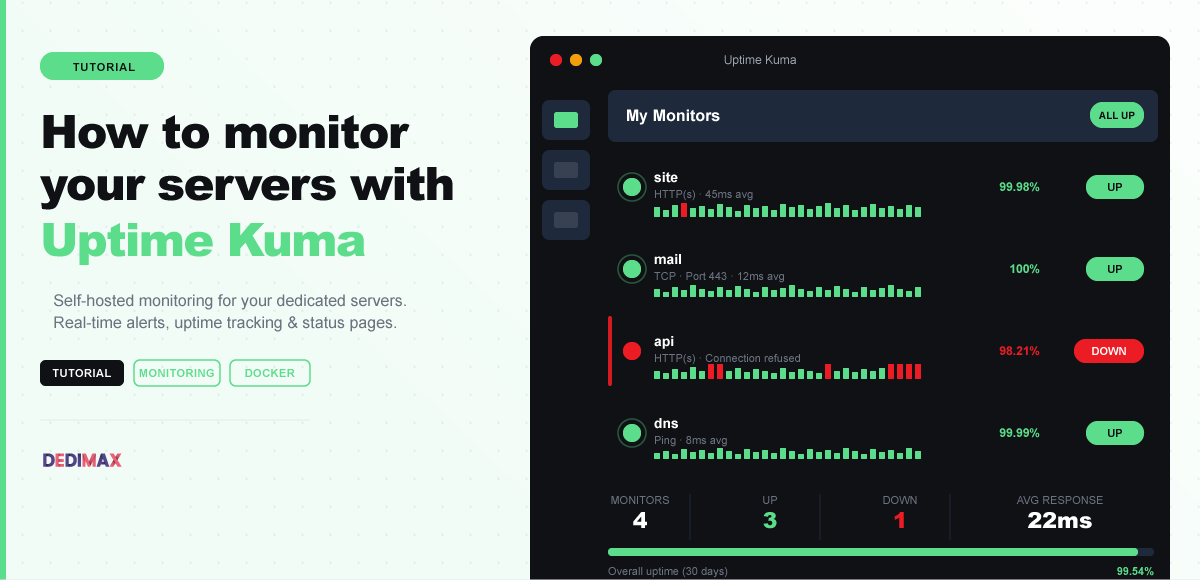
Uptime Kuma is a free, open-source monitoring tool you run on your own server. It checks your websites, APIs, databases, and services at whatever interval you want, down to every 20 seconds if you're paranoid. And it actually looks good. The dashboard is something you'd want to keep open on a screen.
Uptime Kuma isn't just an HTTP pinger. It supports:
You can monitor anything with a network endpoint. I use it to track 30+ services across multiple servers: websites, APIs, databases, and a couple of game servers.
Uptime Kuma is lightweight. About 256 MB of RAM and almost no CPU. You have a few options.
On an existing server. If you already have a VPS or dedicated server with some headroom, run Uptime Kuma alongside your other services. It barely consumes resources.
On a separate small server. This is what I'd recommend for production monitoring. If your main server goes down and Uptime Kuma is on the same machine, it goes down too, and you don't get the alert. A small Cloud server from 3.90€/month is enough to run Uptime Kuma and monitor everything else.
The golden rule: your monitoring server should NOT be in the same datacenter as what it monitors. If there's a network issue in Frankfurt, your monitor in Frankfurt won't be able to tell you about it. Put your monitor in a different location.
SSH into your server and run:
bash
mkdir -p ~/uptime-kuma && cd ~/uptime-kuma

docker run -d \
  --name uptime-kuma \
  --restart unless-stopped \
  -p 3001:3001 \
  -v ./data:/app/data \
  louislam/uptime-kuma:1
That's it. Uptime Kuma is running on port 3001.
If you prefer Docker Compose (easier to manage long-term):
bash
nano docker-compose.ymlyaml
version: '3.8'
services:
  uptime-kuma:
    image: louislam/uptime-kuma:1
    restart: unless-stopped
    ports:
      - "3001:3001"
    volumes:
      - ./data:/app/data
bash
docker compose up -dYou don't want to access your monitoring dashboard on port 3001 without HTTPS. Set up an Nginx reverse proxy:
bash
sudo nano /etc/nginx/sites-available/statusnginx
server {
    listen 80;
    server_name status.yourdomain.com;

    location / {
        proxy_pass http://127.0.0.1:3001;
        proxy_set_header Host $host;
        proxy_set_header X-Real-IP $remote_addr;
        proxy_set_header X-Forwarded-For $proxy_add_x_forwarded_for;
        proxy_set_header X-Forwarded-Proto $scheme;
        proxy_http_version 1.1;
        proxy_set_header Upgrade $http_upgrade;
        proxy_set_header Connection "upgrade";
    }
}
bash
sudo ln -s /etc/nginx/sites-available/status /etc/nginx/sites-enabled/
sudo nginx -t && sudo systemctl reload nginx
sudo certbot --nginx -d status.yourdomain.com
The WebSocket headers are essential. Without them the dashboard loads but the real-time updates don't work.
Open https://status.yourdomain.com and create your admin account. Then start adding monitors.
For each one, you set:
Start with the obvious ones: your main website, your API endpoints, your database port. Then add the less obvious things: SSL certificate expiry, DNS records, any third-party services you depend on.
This is where Uptime Kuma shines. It supports 90+ notification services out of the box:
Set up at least two notification channels. If your email server is down, you won't get the email alert telling you it's down. A Telegram or Discord webhook as backup makes sure you always get notified.
Uptime Kuma can generate a public status page showing uptime for your services. This is genuinely useful if you run a business. Customers can check the status page instead of emailing support.
In the dashboard, go to Status Pages → New Status Page. Pick which monitors to show, customize the branding, and publish. You can map it to status.yourdomain.com and point your "Is our service down?" FAQ there.
Here's how I organize my monitors.
Critical (check every 30s, alert immediately):
Important (check every 60s, 2 retries before alert):
Nice to have (check every 5 min):
Group them by server or by function, whatever makes sense for your setup.
Monitoring from the same server. I said it above but it's worth repeating. If your main server dies, your monitor dies with it. Use a separate server, ideally in a different location.
Too many false alarms. Set retry count to at least 2. A single failed check can be a network blip, not real downtime. You'll train yourself to ignore alerts if they cry wolf every day.
Not monitoring the monitor. Sounds recursive but if Uptime Kuma itself goes down, who tells you? A free external uptime check that monitors your Uptime Kuma instance is the simplest answer. Belt and suspenders.
Forgetting SSL expiry. Uptime Kuma checks SSL certificates automatically on HTTPS monitors. Make sure you have alerts set for expiring certs. A 30-day warning gives you plenty of time to renew.
For completeness:
Uptime Kuma hits the sweet spot. Simple enough to set up in 5 minutes, powerful enough to cover most monitoring needs, and free forever because you host it yourself.
Uptime Kuma itself: free.
The server to run it: a Cloud server from 3.90€/month handles it easily. Even a small VPS gives you room to run other lightweight tools alongside it (a blog, a small dashboard, a static site).
If you're already running a dedicated server for a game community or a web application, Uptime Kuma can live on a separate Cloud instance in a different location. That way you get true independent monitoring. Your monitor stays up even if your main infrastructure has a bad day.
The important thing is that your monitoring is not in the same basket as what it monitors. A 3.90€/month Cloud server in Paris watching your dedicated server in Frankfurt is cheap insurance.
Prenez les manettes de votre serveur dédié (configuration, données hébergées…) sans limites dans l’installation de vos applications.
Alors, vous nous rejoignez quand ?
On vous attend sur notre blog. Guides et tutoriels publiés régulièrement (sysadmin, gaming, devops...) !
ça m'interesse